
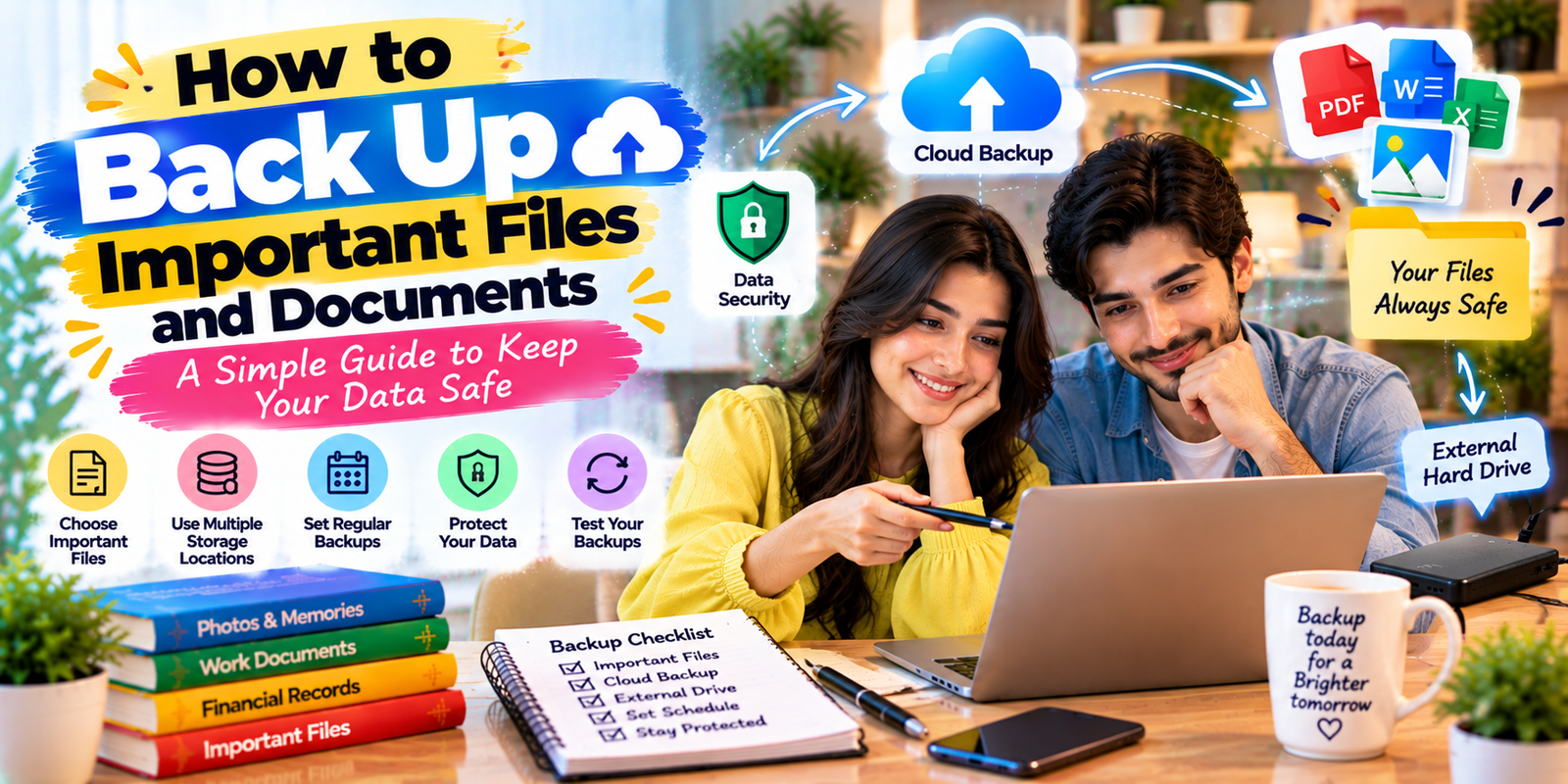
Losing important files can happen because of a damaged device, accidental deletion, malware, theft, or hardware failure. A reliable File Backup Strategy gives you another copy of important information so you can recover it when something goes wrong. Whether you are protecting personal photos, work documents, financial records, school projects, or business files, the goal is simple: keep important data in more than one safe location.
This guide explains how to choose what to back up, where to store backups, how often to create them, how to protect sensitive information, and how to test your backups so they are actually useful when you need them.
Quick Summary
A practical File Backup Strategy should include multiple copies of important files, more than one storage location, regular backups, and periodic restoration tests.
- Identify the files you cannot afford to lose.
- Keep important data in at least two separate locations.
- Use a combination of external storage and cloud storage when practical.
- Automate backups when your device or backup service supports it.
- Protect sensitive backups with strong account security and encryption where available.
- Test your backups by restoring individual files or folders.
- Review your backup system regularly as your files and devices change.
What Is a File Backup Strategy?
A File Backup Strategy is a planned method for making, storing, protecting, and maintaining copies of important digital information. Instead of depending on one computer, phone, USB drive, or cloud account, you create additional copies that can be recovered if the original becomes damaged, deleted, corrupted, or inaccessible.
A backup is different from simply moving a file from one folder to another. If you move the only copy of a document to another location and the storage device fails, you can still lose the file. A backup should provide an additional copy that can be recovered when the original is unavailable.
Start by Identifying Important Files
The first step in building a File Backup Strategy is deciding what actually needs protection. Not every temporary download or duplicate file needs the same level of backup protection.
Start with files that would be difficult, expensive, or impossible to replace. These may include:
- Personal and family photos
- Videos and recordings
- Tax and financial documents
- Identity and insurance documents
- Work files and business records
- School assignments and research
- Important spreadsheets and presentations
- Creative projects and original designs
- Contracts and legal documents
- Important emails or exported records
After identifying these files, separate them from data that can easily be downloaded or recreated. This makes your backup system easier to manage and helps you focus your storage and attention on information that matters most.
Choose More Than One Storage Location
A strong File Backup Strategy avoids depending on a single physical location. If your only backup is stored next to your computer, the same event could damage both copies. Theft, fire, flooding, or another physical incident could affect devices stored together.
For important information, consider combining different storage methods. A common approach is to keep one copy on your primary device, another on an external storage device, and another in a secure cloud service.
This approach creates redundancy. If one copy becomes unavailable, another may still be accessible.
Use an External Hard Drive
An external hard drive can be a practical part of a File Backup Strategy because it provides a separate physical location for your files. You can connect the drive when you need to create or update a backup and disconnect it afterward.
External storage can be especially useful for large photo libraries, videos, design files, and other data that may take significant cloud storage space.
However, an external drive should not automatically be treated as permanent protection. Drives can fail, become lost, or be damaged. For that reason, an external drive works best as one part of a broader backup plan rather than the only backup location.
Consider Cloud Storage
Cloud storage can make a File Backup Strategy more convenient because files can be stored away from your physical location. Services such as Google Drive, Microsoft OneDrive, Dropbox, and Apple iCloud provide different storage and synchronization features.
Before choosing a cloud service, review its security controls, account recovery options, storage limits, privacy information, and backup or synchronization behavior. Cloud synchronization is not always the same as a traditional backup. If a file is deleted or changed and that change is synchronized across devices, the original may not remain available indefinitely.
For especially important information, check whether the service provides version history, deleted-file recovery, or other recovery features that fit your needs.
Follow the 3-2-1 Backup Approach
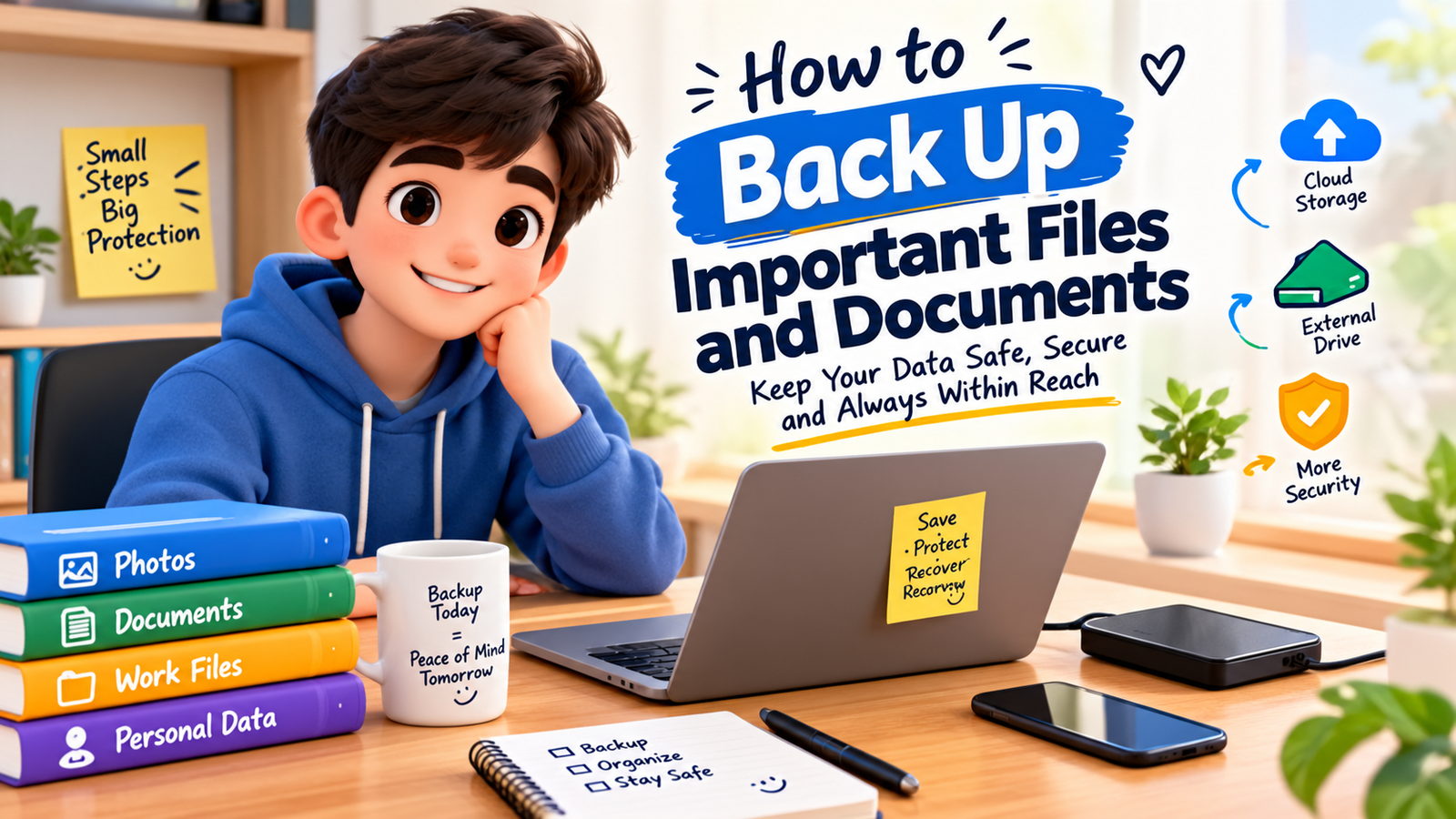
The 3-2-1 method is a useful framework for building a File Backup Strategy. The basic idea is to maintain three copies of important data, use two different types of storage or media, and keep one copy in a separate location.
- Three copies: Keep the original plus two additional copies when practical.
- Two storage types: Use different storage methods rather than depending entirely on one medium.
- One off-site copy: Keep at least one copy away from the location of your main device.
You do not need to apply the method identically to every file. The more important the information, the more useful redundancy becomes.
Back Up Documents You Cannot Replace
Important documents should be a priority in your File Backup Strategy. Create organized folders for items such as tax records, identification documents, insurance information, contracts, receipts, certificates, and business records.
If documents contain sensitive personal information, avoid leaving them in an unsecured shared folder. Use appropriate account security and storage protections, and limit access to people who genuinely need it.
Consider keeping a consistent folder structure so that you can quickly locate a document when you need to restore it. A simple structure such as “Financial,” “Work,” “Education,” “Personal,” and “Legal” can be easier to maintain than dozens of unrelated folders.
Protect Photos and Videos
Photos and videos can consume a large amount of storage, making them an important part of a File Backup Strategy. Start by removing obvious duplicates, blurry images, accidental screenshots, and files you no longer need.
Organize meaningful photos into sensible albums or folders. You might separate family events, trips, projects, and important scanned documents.
Keep another copy of valuable photos instead of relying on a single phone, computer, or memory card. If your photo collection is important, consider maintaining both a cloud copy and a separate physical backup.
Back Up Your Phone and Tablet
Your mobile devices may contain photos, contacts, messages, notes, documents, and application data, so they should also be included in your File Backup Strategy.
Check your phone’s built-in backup settings and determine what information is being backed up automatically. Do not assume that every type of data is included simply because device backup is enabled.
Important files stored outside the standard backup system may need to be copied separately. Review your backup settings after changing devices or accounts to make sure the new device is protected.
Automate Backups When Possible
Automation makes a File Backup Strategy easier to maintain because you do not have to remember every backup manually.
Many operating systems, cloud services, and backup applications offer scheduled or automatic backup features. Choose a schedule based on how frequently your files change.
If you create important work files every day, a frequent backup schedule makes sense. If your files change less often, weekly or another practical schedule may be enough for your situation.
Automatic backups are useful, but they should still be monitored. An automated process can fail because of storage limits, disconnected drives, expired credentials, software problems, or network issues.
Secure Your Backup Copies
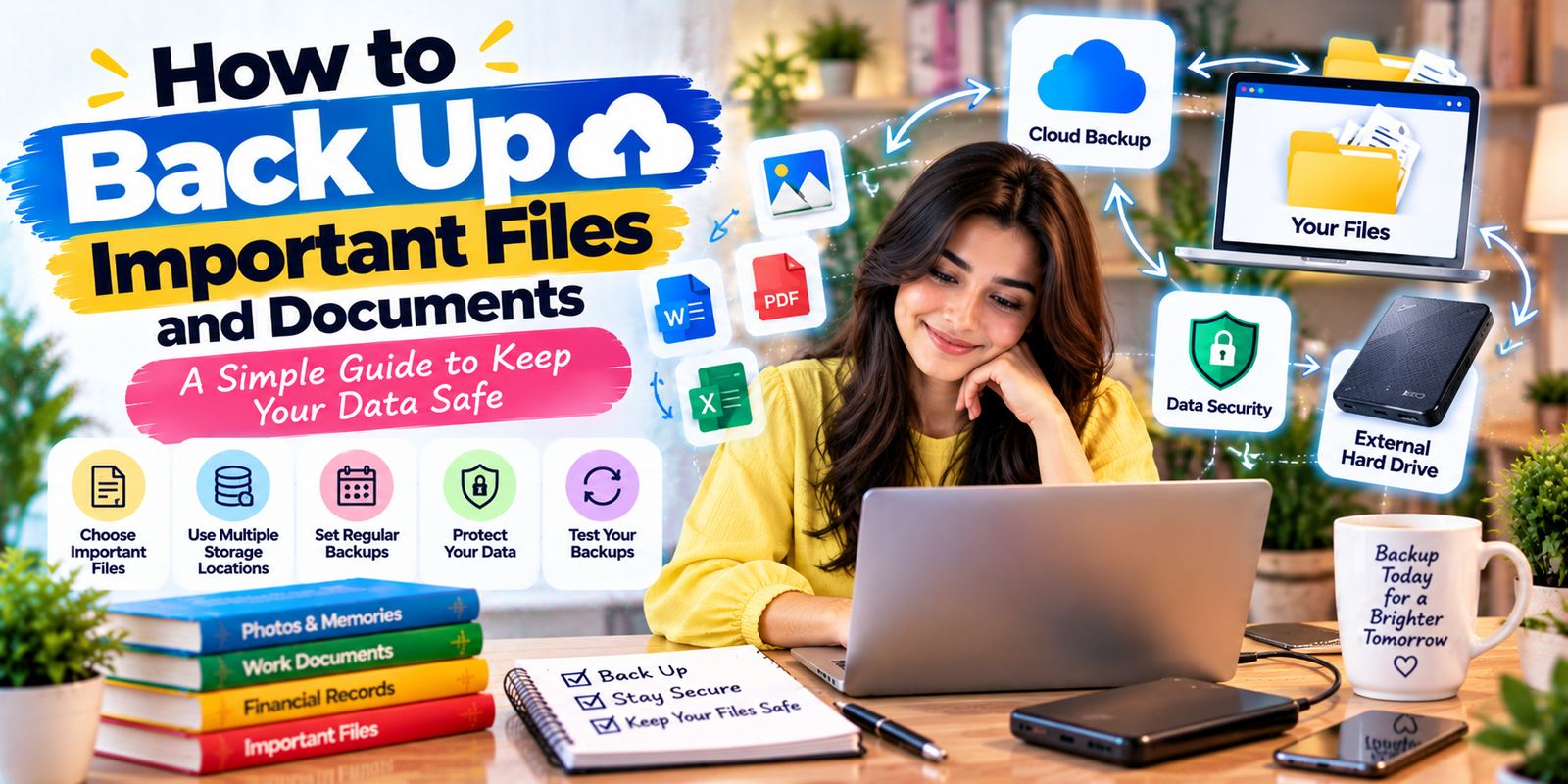
Security is an important part of a File Backup Strategy. A backup that can be accessed by anyone who obtains the device or account may create another privacy risk.
Use strong, unique passwords for important accounts and enable multi-factor authentication when it is available. Keep operating systems, browsers, and backup software updated.
For sensitive information, consider storage options that support encryption. If you use an external drive, keep it in a safe location when it is not connected to your computer.
Test Your Backups Regularly
Creating backups is only one part of a reliable File Backup Strategy. You also need to know that the files can actually be restored.
Periodically select a few files and restore them to another location. Check that the documents open correctly, photos are readable, and important folders contain the expected information.
For larger backup systems, perform more complete restoration tests from time to time. Testing can reveal problems before you experience a real data loss event.
Protect Backups From Malware and Ransomware
A good File Backup Strategy should consider malware and ransomware. Some attacks can affect files connected to an infected computer, which means a permanently connected backup may not always provide enough protection.
When practical, keep at least one backup copy separated from your everyday devices or network. For cloud accounts, use strong authentication and review account security settings.
If your files are extremely important, consider using backup systems with features such as version history, access controls, or protected recovery options. The right setup depends on the type and importance of your data.
Use Clear File Names and Folders
Organization makes a File Backup Strategy easier to manage. A backup is less useful if you cannot identify the correct file when you need it.
Use descriptive file names that include useful information such as the project name, document type, or date. For example, “2026-Tax-Documents” is easier to understand than “New Folder 4.”
Keep folder structures simple and consistent. Avoid creating unnecessary layers of folders that make important documents difficult to find.
Decide How Often to Back Up
The right schedule for a File Backup Strategy depends on how often your data changes and how much information you could afford to lose.
| Type of Data | Practical Backup Approach |
|---|---|
| Daily work files | Daily or automated backups |
| Family photos | Automatic or regular scheduled backups |
| Financial records | Regular backups with secure storage |
| Occasional documents | Backup after important updates |
| Business or project files | Frequent automated backups and periodic testing |
The key is consistency. A backup system that is rarely updated can leave you with an outdated copy when you actually need it.
Keep Sensitive Information Protected
When your File Backup Strategy includes sensitive records, think beyond simple storage. Consider who can access the files, how the account is protected, and whether the storage provider offers suitable security controls.
Do not share passwords or backup credentials unnecessarily. Be careful when using public or shared computers to access backup accounts, and sign out when finished.
If you store highly sensitive documents on removable media, keep the device physically secure and consider encryption where supported.
Build a Simple Personal Backup Routine
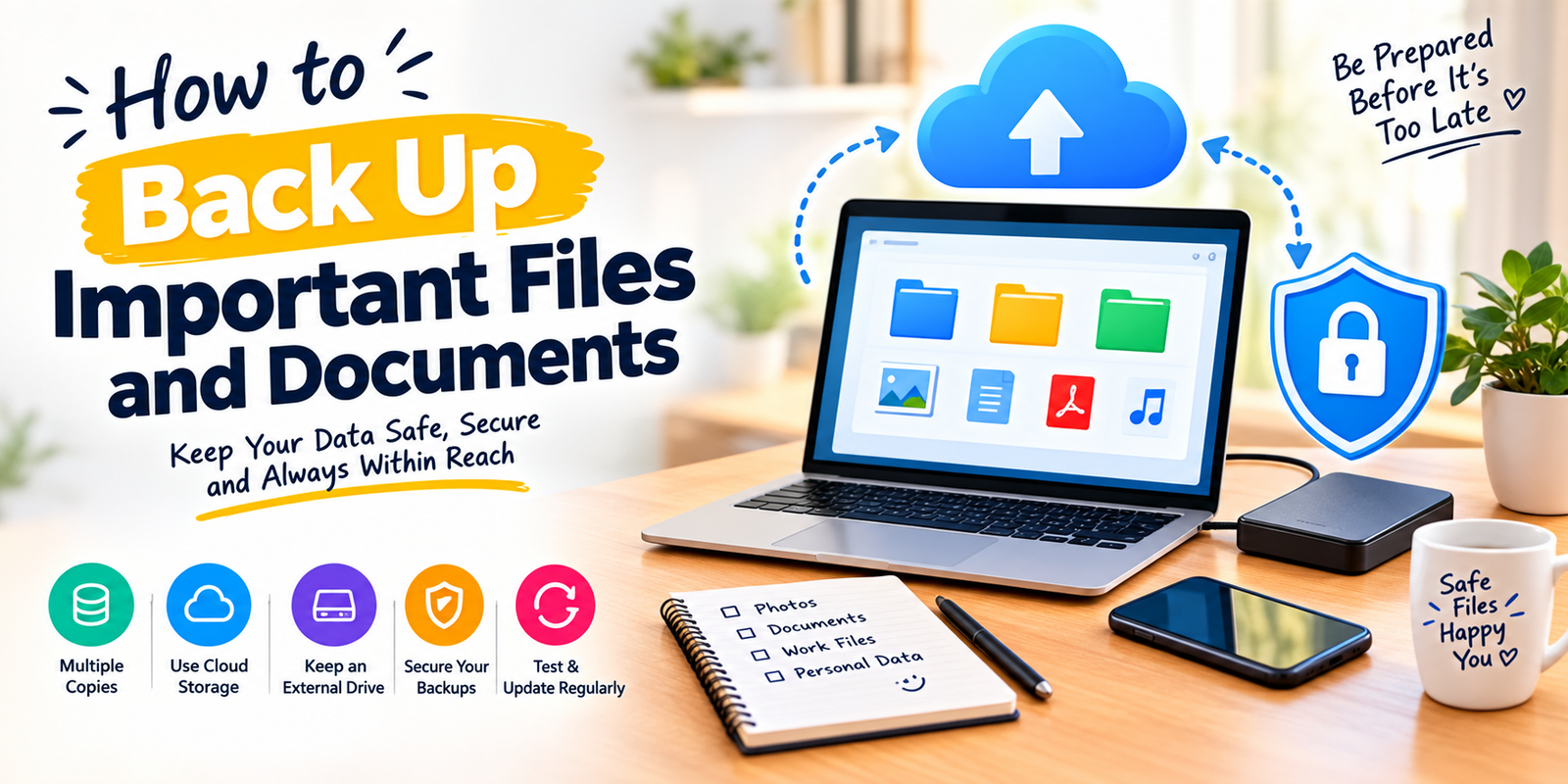
A practical File Backup Strategy does not have to be complicated. You can start with a simple routine:
- Identify your most important files.
- Remove unnecessary duplicates and outdated files.
- Organize the remaining information into clear folders.
- Create a local backup on external storage.
- Keep another copy in a separate location or suitable cloud service.
- Enable automatic backups where practical.
- Test restoration periodically.
- Review the system when you buy a new device or change storage services.
This routine gives you a repeatable process instead of relying on memory whenever you remember to back something up.
Common Backup Mistakes
Even a thoughtful File Backup Strategy can fail if a few common mistakes are overlooked.
- Keeping only one backup: A single backup can fail or become inaccessible.
- Leaving every copy in one place: Physical events can affect multiple devices at the same location.
- Never testing restoration: You may discover a problem only when you urgently need the files.
- Ignoring old backups: Outdated copies may not contain your latest work.
- Forgetting mobile devices: Phones often contain irreplaceable photos and personal information.
- Confusing synchronization with backup: A synchronized deletion can sometimes affect multiple devices.
- Ignoring account security: A poorly protected cloud account can put stored data at risk.
Expert Tips for Better Backups
A few practical improvements can make your File Backup Strategy more dependable without making it unnecessarily complicated.
- Prioritize irreplaceable information first.
- Use automatic backups for frequently changing files.
- Keep at least one copy away from your primary device.
- Disconnect removable backup drives when they are not being used, when practical.
- Use multi-factor authentication on important cloud accounts.
- Check available storage before a large backup.
- Test a small restoration instead of assuming a backup works.
- Review your backup system whenever you add a new computer or phone.
Backup Checklist
Use this checklist to review your File Backup Strategy:
- Have I identified my irreplaceable files?
- Do I have more than one copy of important information?
- Is at least one copy stored separately from my main device?
- Are my cloud and backup accounts protected with strong authentication?
- Are my backups recent enough for my needs?
- Have I tested restoring files?
- Do I know where my most important documents are stored?
- Have I included my phone and tablet data?
- Have I reviewed my backup plan recently?
Frequently Asked Questions
What is the best File Backup Strategy for personal files?
The best File Backup Strategy depends on your needs, but a practical approach is to keep multiple copies of important files using more than one storage location. Combining local and off-site storage can provide useful redundancy.
How often should I back up important files?
Back up files as often as the information changes and as much data as you can afford to lose. For frequently updated work, automated daily backups can be practical. Less frequently changed files may need a less frequent schedule.
Is cloud storage enough for backing up important documents?
Cloud storage can be part of a File Backup Strategy, but synchronization and backup are not always identical. Check whether the service offers recovery features such as version history or deleted-file restoration, and consider keeping another copy of especially important information.
Should I use an external hard drive for backups?
Yes. An external hard drive can provide a useful additional copy of important files. For better protection, avoid making it your only backup and consider keeping another copy in a separate location.
How do I know if my backup is working?
The simplest way to verify a backup is to restore a few files and confirm that they open correctly. Regular restoration tests can help identify failed or incomplete backups before an emergency.
What is the 3-2-1 backup rule?
The 3-2-1 approach recommends keeping three copies of important data, using two different storage types or media, and keeping one copy in a separate location. It is a useful framework for reducing dependence on a single backup.
Conclusion
A dependable File Backup Strategy is less about buying the most expensive storage and more about creating multiple, organized, secure, and recoverable copies of the information that matters. Start with your most important documents, photos, work files, and personal records. Use a combination of storage locations, automate backups where practical, protect your accounts, and test your backups regularly.
The most important step is to start before you need a recovery copy. A simple and consistent backup routine can make it much easier to recover important information after accidental deletion, device failure, theft, or other unexpected problems.