
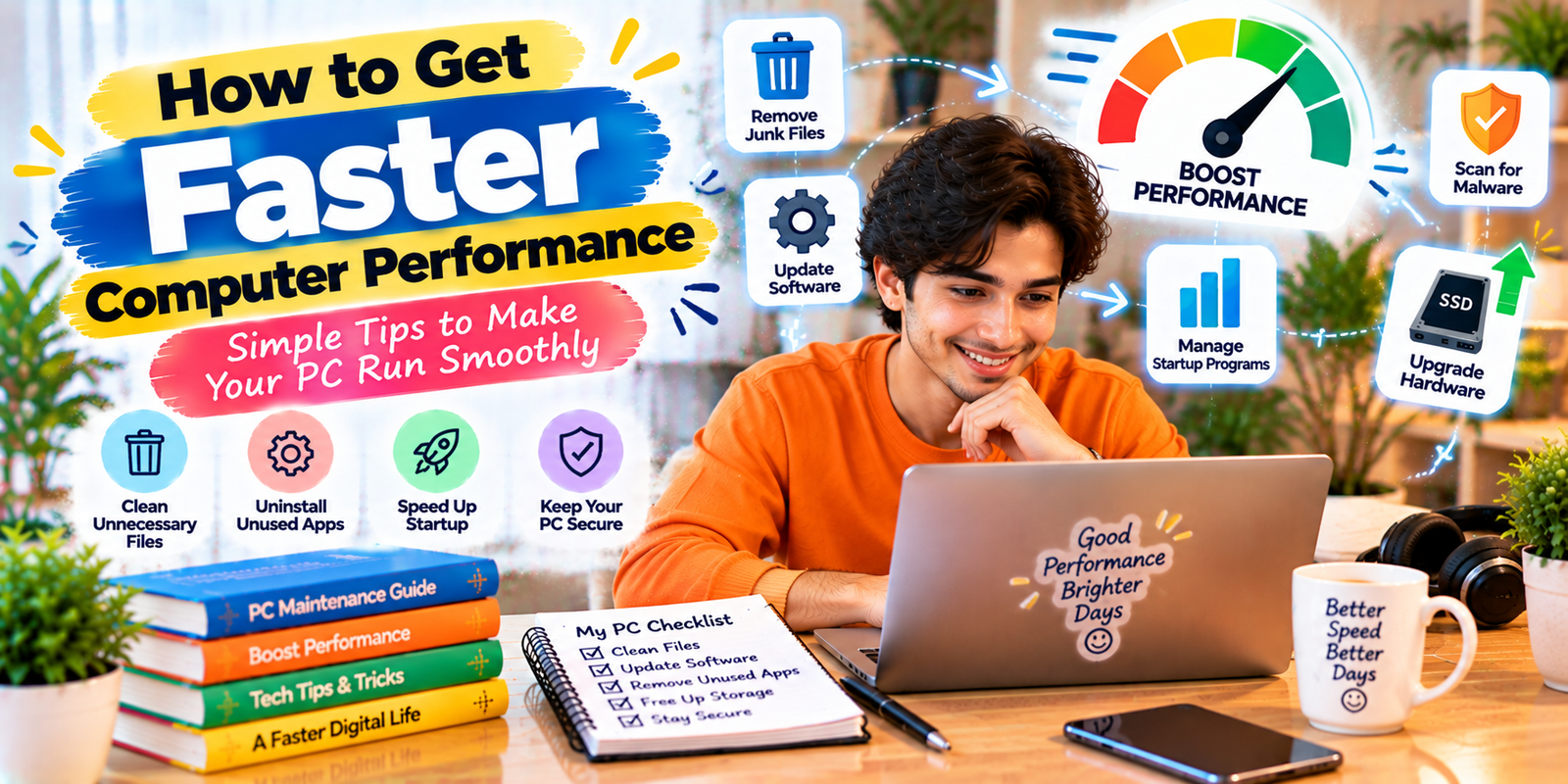
A slow computer can make simple tasks frustrating, especially when apps take too long to open, websites freeze, or the system becomes unresponsive. Improving Faster Computer Performance starts with finding the reason behind the slowdown instead of immediately replacing the device. Cleaning unnecessary files, reducing startup programs, managing browser tabs, updating software, and checking hardware usage can make a noticeable difference.
This guide explains practical ways to improve Faster Computer Performance and make everyday computing more efficient. Whether you use a Windows PC or another desktop or laptop, these steps can help you find the cause of slow performance and choose the right solution.
Quick Summary
- Restart your computer regularly when performance becomes sluggish.
- Remove unnecessary apps, files, and temporary data.
- Reduce the number of programs that launch at startup.
- Keep your operating system, drivers, and important software updated.
- Close unused browser tabs and remove unnecessary extensions.
- Monitor CPU, memory, disk, and other resources to find heavy processes.
- Scan for malware or unwanted software.
- Keep enough free storage available.
- Consider an SSD or RAM upgrade if the hardware is limiting Faster Computer Performance.
Why Is Your Computer Running Slowly?
A computer can become slow for many different reasons. A nearly full storage drive, too many background applications, insufficient memory, outdated software, browser extensions, malware, overheating, or aging hardware can all affect Faster Computer Performance.
It is important to identify the actual cause before making major changes. For example, deleting files will not solve a problem caused by insufficient RAM, while adding more memory will not necessarily fix a computer overloaded with unnecessary startup applications.
Start by observing when the slowdown happens. If the computer is slow immediately after startup, startup programs may be responsible. If it becomes slow when many browser tabs are open, memory usage may be the problem. If applications remain slow even after cleanup, hardware limitations may need further attention.
Restart Your Computer
One of the simplest ways to improve Faster Computer Performance is to restart your computer. A restart closes running processes, clears temporary system states, and gives the operating system a fresh session.
If your computer has been running for a long time, restarting can sometimes resolve temporary slowdowns caused by applications or background processes. It is also useful after installing updates or certain software.
A restart is not a permanent performance solution, but it is a useful first troubleshooting step.
Free Up Storage Space
Low storage can contribute to performance problems, especially when the system drive has very little free space. Your operating system and applications need working space for temporary files, updates, caches, and other tasks. Maintaining adequate free space can support Faster Computer Performance.
Review your storage and remove files you no longer need. Look for
- Temporary files
- Old downloads
- Unused applications
- Large videos and duplicate files
- Old installation files
- Files sitting in the recycle bin
On Windows, the Storage settings can help you identify which categories are using the most space. You can also use built-in cleanup features instead of relying on unknown third-party cleaning programs.
Uninstall Apps You Do Not Use
Unused software takes up storage and may also install background services or update processes. Removing applications you no longer need can make the system easier to manage and support Faster Computer Performance.
Before uninstalling anything, make sure you know what the application does. Avoid removing drivers, system components, or software that you need for your hardware.
A good approach is to review your installed applications every few months. If you have not used a program for a long time and do not expect to need it, consider uninstalling it.
Reduce Startup Programs
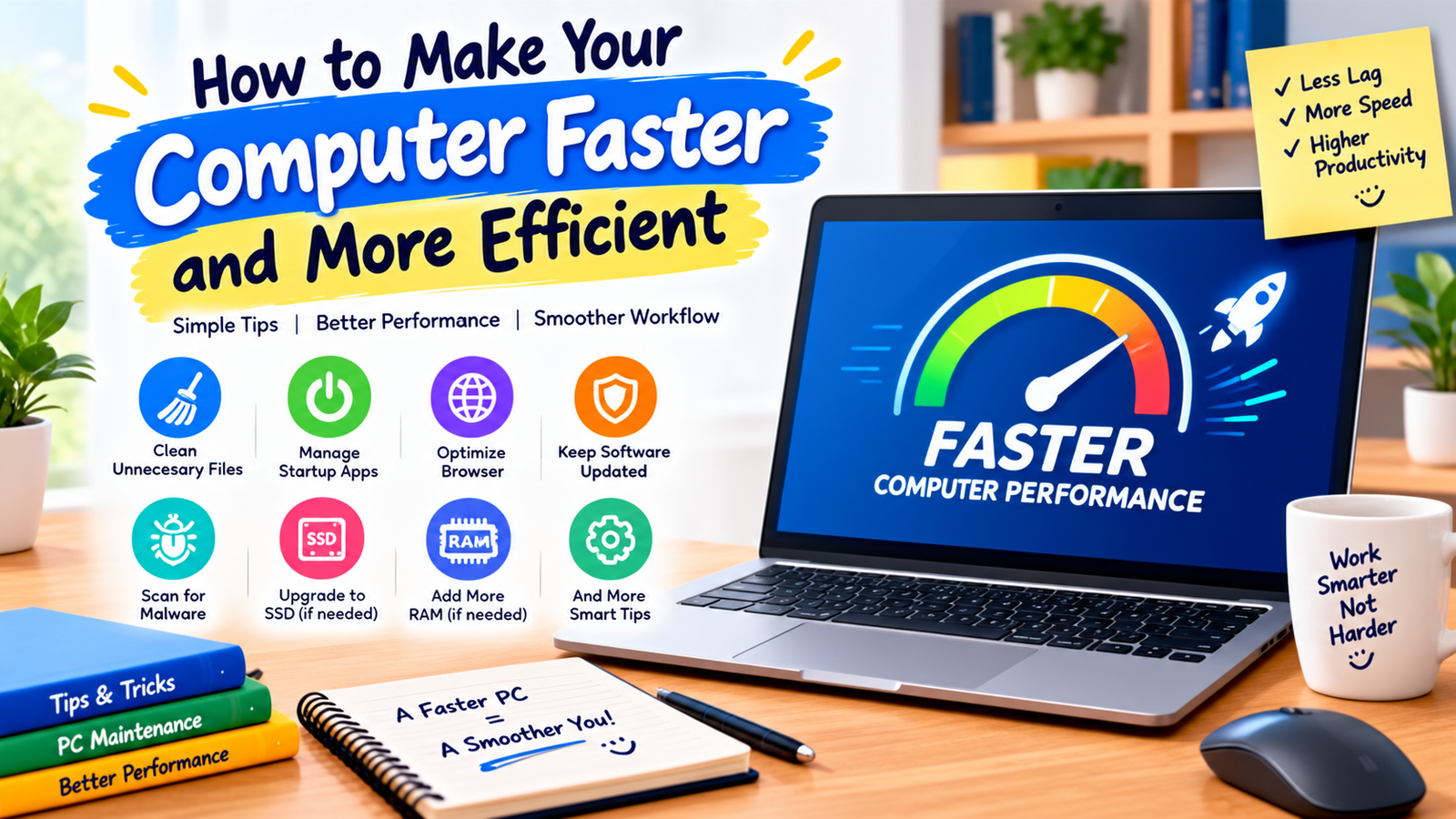
Many applications configure themselves to start automatically when you turn on your computer. A large number of startup programs can increase boot time and consume system resources, making it harder to achieve Faster Computer Performance.
Open your operating system’s startup settings and review the applications that launch automatically. Disable programs you do not need immediately after starting the computer.
Keep essential security software and important system services enabled. For other applications, ask whether you really need them running in the background every time you start your computer.
Manage Background Processes
Background applications can consume CPU, memory, disk, or network resources even when you are not actively using them. If your computer feels slow, checking these processes can help improve Faster Computer Performance.
On Windows, Task Manager provides useful information about CPU, memory, disk, and network activity. If one application is consistently consuming an unusually large amount of a resource, investigate it before simply ending the process.
Some processes are essential to the operating system, so do not close unfamiliar system processes without understanding their purpose.
Close Unnecessary Apps and Browser Tabs
Running many applications at the same time can increase memory usage. Web browsers can also consume significant resources when dozens of tabs, extensions, and web applications are open. Managing them properly can contribute to Faster Computer Performance.
Close tabs you are no longer using and quit applications that are not needed. If you frequently keep many tabs open, consider using bookmarks or a reading list instead of leaving everything active.
Modern browsers may also provide performance features that reduce memory usage from inactive tabs. Check your browser’s performance settings to see which options are available.
Remove Unnecessary Browser Extensions
Browser extensions can be useful, but every extension adds another component to your browsing environment. Some extensions may also run background processes or affect how websites load.
Review your installed extensions and remove those you no longer use. Keeping only necessary extensions can support Faster Computer Performance while also making your browser easier to manage.
If your browser suddenly becomes slow after installing an extension, temporarily disabling it can help determine whether the extension is contributing to the problem.
Keep Your Software Updated
Operating system and application updates can include bug fixes, security improvements, compatibility changes, and performance-related improvements. Keeping important software updated is an important part of maintaining Faster Computer Performance.
Check for operating system updates and update commonly used applications through their official update mechanisms. Avoid downloading updates from unfamiliar websites because fake update packages can contain unwanted software.
Scan for Malware
Malware and unwanted software can consume system resources and cause unusual computer behavior. If your computer suddenly becomes slow, displays unexpected advertisements, opens unfamiliar pages, or behaves differently, security problems should be considered.
Use a trusted security solution and keep its definitions or components updated. On Windows, the built-in Windows Security tools provide malware scanning features.
A clean and secure system is an important foundation for Faster Computer Performance. Do not install random “PC booster” or “one-click optimizer” programs simply because they promise dramatic speed improvements.
Check CPU, RAM, and Disk Usage
Understanding resource usage can help you improve Faster Computer Performance more effectively because it shows what is actually limiting the system.
CPU Usage
The CPU handles instructions from applications and the operating system. If CPU usage remains very high, identify which process is responsible and determine whether it is a program you need.
RAM Usage
RAM holds information that active applications need quickly. When available memory becomes limited, the operating system may rely more heavily on storage, which can make multitasking feel slower.
Disk Usage
High disk activity may indicate file transfers, updates, indexing, application activity, or other background work. If disk usage remains unusually high for a long time, investigate the process responsible.
Keep Your Computer Cool
Heat can affect computer performance and hardware stability. Laptops and desktops need adequate airflow to operate properly, especially during demanding workloads.
Keeping vents clear and maintaining proper airflow can support Faster Computer Performance. Avoid using a laptop on soft surfaces that can block airflow.
If fans are constantly running at high speed or the computer becomes unusually hot, check for dust buildup, blocked ventilation, or demanding background processes. For persistent overheating, professional hardware servicing may be more appropriate than changing random software settings.
Use an SSD for Better Responsiveness
If your computer still uses a traditional hard disk drive, replacing it with a solid-state drive can significantly improve everyday responsiveness. An SSD can make operating system startup, application launches, and file access feel much faster than an older mechanical drive.
An SSD upgrade can be especially useful when the existing hard drive is the main performance bottleneck. Before replacing a drive, back up important files and confirm that the new drive is compatible with your computer. This can be an effective hardware step toward Faster Computer Performance.
Consider Adding More RAM
Additional RAM can help when your computer regularly struggles with multitasking. If the system slows down when you open many applications or browser tabs, memory may be a limiting factor.
More memory can support Faster Computer Performance when the existing RAM capacity is insufficient. However, RAM upgrades depend on the computer’s motherboard, available slots, supported memory type, and maximum capacity.
Check the device specifications before purchasing an upgrade.
Optimize Your Browser
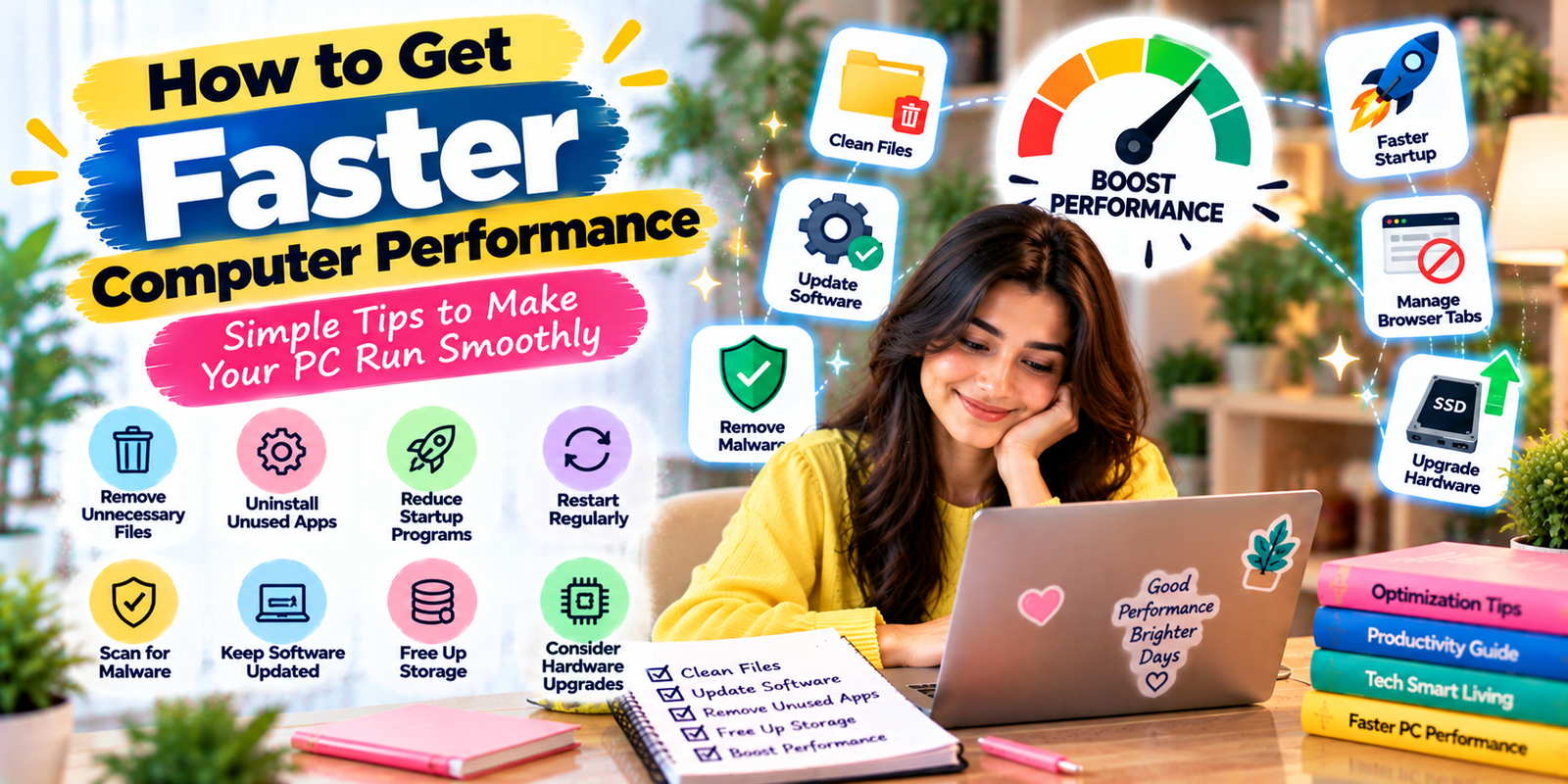
Your browser can have a major effect on how fast your computer feels because it may remain open for hours and run multiple websites simultaneously. Browser optimization is therefore another practical part of Faster Computer Performance.
To improve browser performance:
- Close unused tabs.
- Remove extensions you no longer need.
- Keep the browser updated.
- Use built-in memory or performance settings when available.
- Close demanding web applications when they are not needed.
- Clear unnecessary browsing data when it is appropriate.
If only your browser feels slow while other applications work normally, focus your troubleshooting on browser tabs, extensions, settings, and browsing data rather than changing the entire computer.
Choose Performance Over Unnecessary Visual Effects
Modern operating systems use animations, transparency, shadows, and other visual effects to make the interface attractive. On older or lower-powered hardware, reducing some visual effects may improve responsiveness and contribute to Faster Computer Performance.
Use this option carefully. Visual effects are normally not the biggest cause of slow performance, so treat them as a secondary optimization rather than a replacement for proper hardware or software troubleshooting.
Change Power Settings When Needed
Laptops often balance performance, battery life, and heat. A higher-performance power mode may allow the system to respond more aggressively during demanding tasks, which can help with Faster Computer Performance.
For everyday browsing and office work, a balanced setting may be enough. For demanding workloads while connected to power, a performance-focused setting may be more appropriate if your system provides one.
Keep Your Files Organized
Good file organization does not automatically make a computer dramatically faster, but it makes storage management easier. When files are organized, you can quickly identify large folders, old downloads, duplicates, and unnecessary data.
Creating an organized storage system can indirectly support Faster Computer Performance by making regular cleanup easier. Create clear folders for documents, photos, videos, projects, and downloads.
Move important files to a reliable backup location before deleting anything.
Common Mistakes to Avoid
Some common computer-speed mistakes can create more problems than they solve and may work against your goal of achieving Faster Computer Performance.
- Deleting system files: Do not remove files simply because you do not recognize them.
- Installing too many optimization tools: Multiple cleaners and boosters can add unnecessary background processes.
- Disabling security software: Never sacrifice basic security just to gain performance.
- Ignoring hardware limitations: Software cleanup cannot turn old hardware into a modern high-performance system.
- Skipping backups: Always protect important files before major system changes or hardware upgrades.
- Changing advanced settings without understanding them: Incorrect system changes can create instability.
When Should You Upgrade Your Computer?
If you have cleaned unnecessary files, reduced startup programs, updated your software, checked for malware, and optimized your browser but the computer remains slow, hardware may be the limiting factor. Understanding this can help you choose the right path for Faster Computer Performance.
Consider an upgrade when you consistently experience slow application launches, poor multitasking, long startup times, insufficient storage, or high resource usage during normal tasks.
An SSD and additional RAM can sometimes extend the useful life of a computer. However, if the processor, motherboard, battery, display, or other major components are also outdated, replacing the computer may be more practical.
Simple Computer Performance Checklist
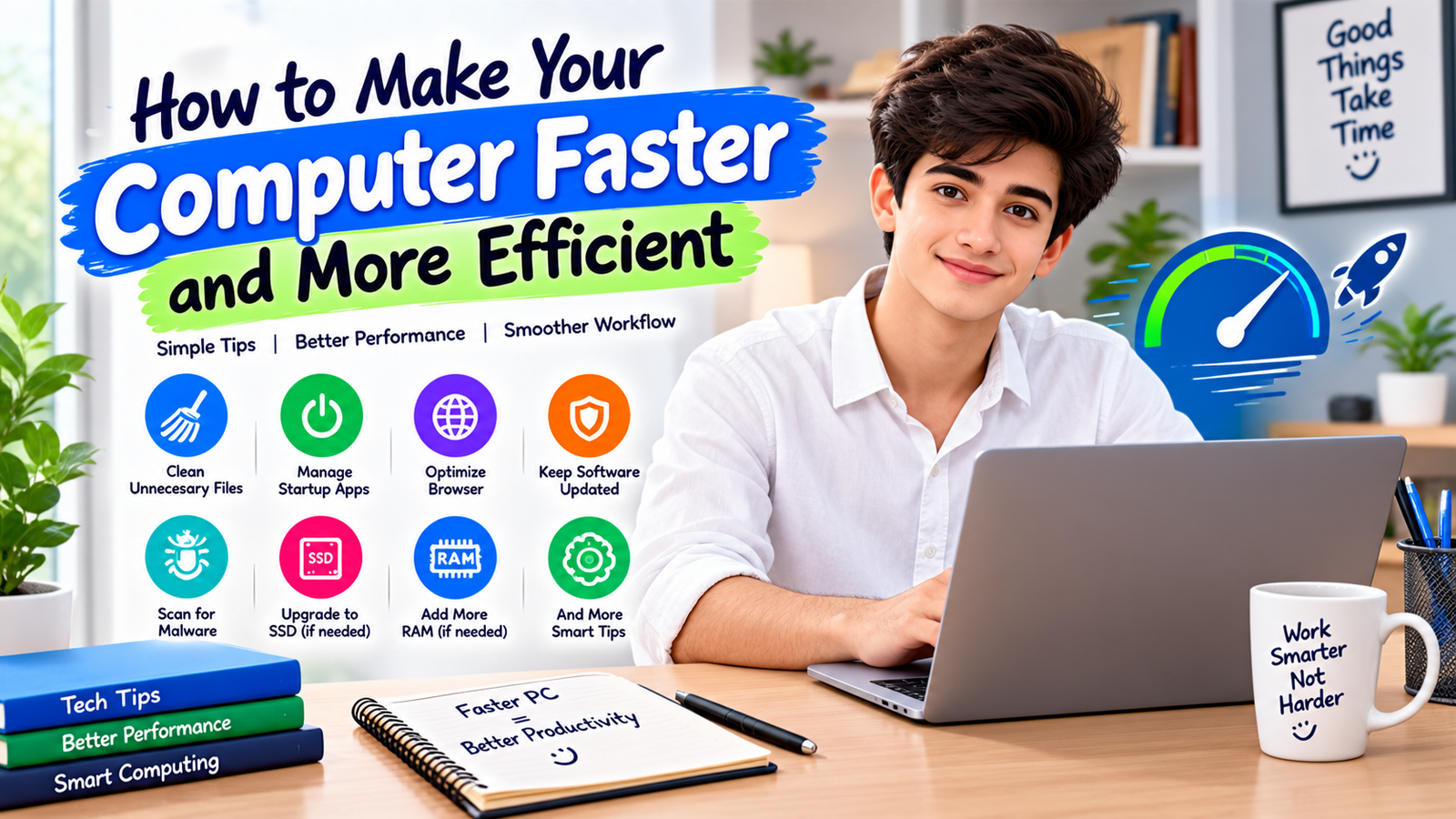
Use this checklist regularly to maintain Faster Computer Performance:
- Restart the computer.
- Check available storage.
- Remove unnecessary files.
- Uninstall unused applications.
- Review startup programs.
- Close unused apps and browser tabs.
- Remove unnecessary browser extensions.
- Install available system and software updates.
- Run a trusted malware scan.
- Check CPU, RAM, and disk usage.
- Keep ventilation clear.
- Consider an SSD or RAM upgrade if necessary.
Expert Tips for Better Computer Efficiency
- Fix the biggest bottleneck first: Use resource monitoring to identify whether CPU, memory, storage, or another component is causing the slowdown.
- Make small changes: Change one major setting at a time so you can tell which action actually helped.
- Make storage management routine: Regular cleanup can help maintain consistent system responsiveness.
- Keep software under control: Install only applications and browser extensions you genuinely need.
- Back up before major changes: Protect important documents before upgrading hardware or reinstalling the operating system.
Frequently Asked Questions
What is Faster Computer Performance?
Faster Computer Performance means improving how quickly and smoothly a computer handles everyday tasks such as starting applications, switching between programs, browsing the web, and accessing files. The best solution depends on whether software, storage, memory, heat, or hardware is causing the slowdown.
How can I improve Faster Computer Performance without buying new hardware?
Start by removing unnecessary files and applications, reducing startup programs, closing unused apps and browser tabs, updating software, scanning for malware, and checking resource usage. These steps can help when the slowdown is caused by software or system clutter.
Does deleting temporary files improve Faster Computer Performance?
Freeing storage can help when a drive is very low on space, but deleting temporary files is not a guaranteed solution for every slow computer. First identify whether limited storage is actually contributing to the problem.
Does more RAM improve Faster Computer Performance?
More RAM can improve multitasking when your current memory capacity is insufficient. It will not necessarily improve performance if the CPU, storage drive, or another component is the main bottleneck.
Does an SSD improve Faster Computer Performance?
An SSD can greatly improve responsiveness compared with an older mechanical hard drive, especially for startup, application launches, and file access. The overall improvement depends on the rest of the computer’s hardware.
Why is my computer slow even after cleaning it?
If software cleanup does not help, the problem may involve limited RAM, an aging processor, a slow storage device, overheating, hardware failure, or another system issue. Monitoring CPU, memory, and disk usage can help identify the next step.
Conclusion
Improving Faster Computer Performance starts with identifying the real cause of the slowdown rather than installing random optimization software. Begin with simple maintenance: restart the computer, free up storage, remove unused applications, reduce startup programs, manage browser extensions, update important software, and check system resources.
If these steps do not provide enough improvement, investigate hardware limitations. An SSD or RAM upgrade may improve an older computer, while very outdated hardware may eventually make replacement the more practical option. With regular maintenance and careful troubleshooting, you can achieve more reliable Faster Computer Performance and keep your computer responsive, efficient, and easier to manage.