
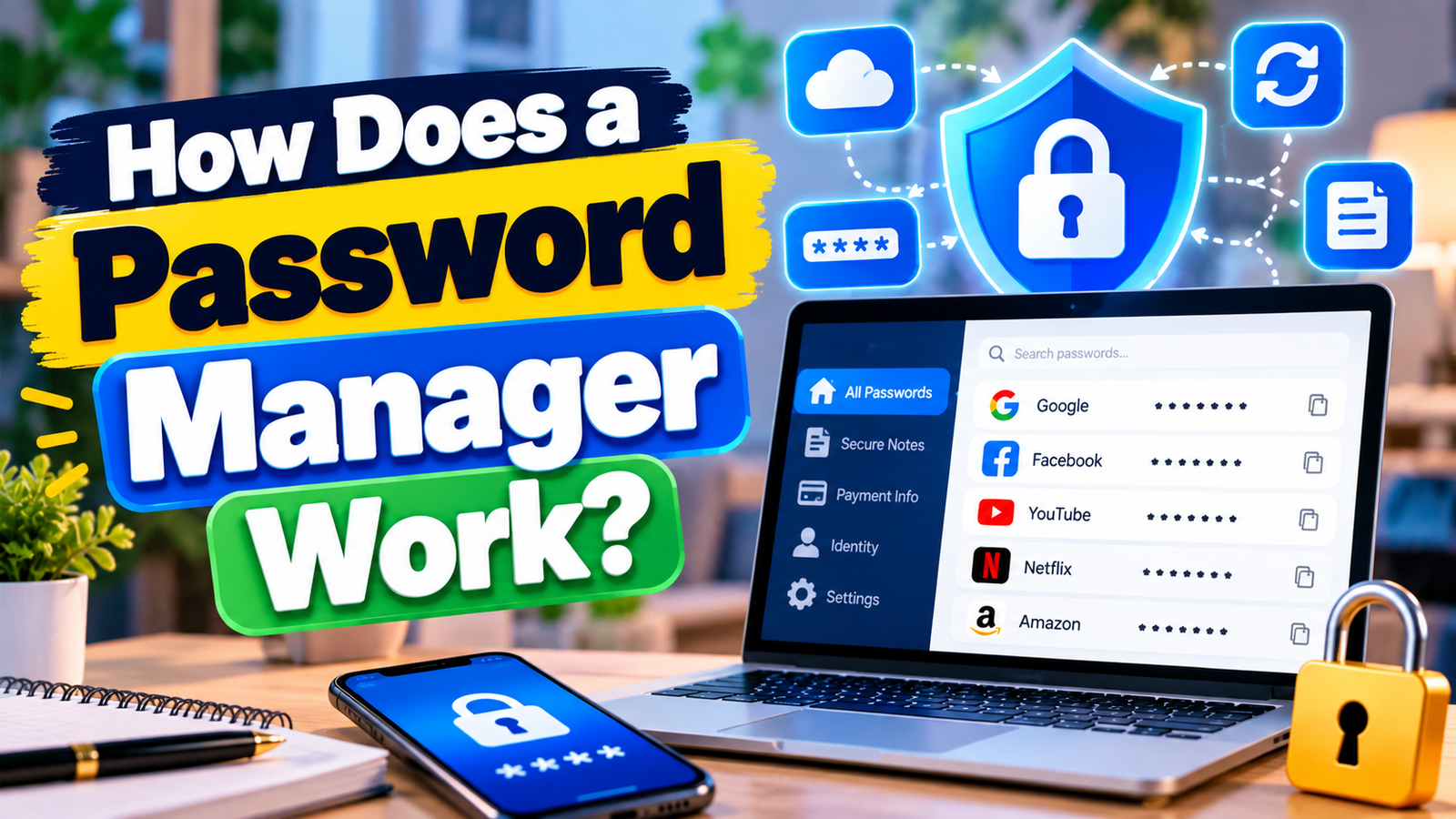
Managing dozens of online accounts can become difficult when every service requires a strong, unique password. A Password Manager can solve this problem by securely storing login credentials and helping you create stronger passwords without requiring you to memorize them all. Whether you use online banking, email, shopping websites, social media, cloud services, or work applications, a password manager can make account security easier to manage.
A password manager is a tool that stores passwords in an encrypted vault and allows you to access them when needed. Most modern password managers can also generate strong passwords, fill login forms automatically, synchronize credentials across devices, and warn you about weak or reused passwords. This Password Manager guide explains how these tools work, how to choose one, how to set one up, and how to use it safely.
What Is a Password Manager?
A password manager is software designed to securely store and manage passwords, usernames, passkeys, secure notes, payment information, and other sensitive data. Instead of remembering a separate password for every account, you normally need to remember only one strong master password or use an appropriate authentication method supported by the service.
The stored information is protected inside an encrypted vault. When you visit a website or open an application, the manager can provide the saved credentials or fill them automatically.
The main purpose of a Password Manager is to make good security practices practical. Creating a different, long, random password for every account is much easier when software remembers those passwords for you.
Why Use a Password Manager?
Many people reuse passwords because remembering dozens of unique passwords is difficult. Password reuse creates a major security problem. If one website suffers a data breach and your password is exposed, attackers may try the same credentials on other websites.
A Password Manager helps reduce this risk by making unique passwords easier to create and maintain.
- Unique passwords: You can use a different password for every account.
- Strong passwords: Built-in generators can create long and random passwords.
- Convenience: Saved credentials can be filled automatically.
- Synchronization: Many services allow access across computers and mobile devices.
- Security monitoring: Some services identify weak, reused, or compromised credentials.
- Secure storage: Sensitive information can be stored in an encrypted vault.
How Does a Password Manager Work?
A Password Manager generally works by storing your credentials in an encrypted database or vault. The exact security architecture varies between products, so it is important to understand the provider’s documentation before choosing a service.
When you create an account, the manager may ask you to establish a master password. This password is especially important because it may protect access to the rest of your stored credentials.
After signing in, you can save login details for websites and applications. When you return to those services, the password manager may recognize the login page and offer to fill in your username and password.
Some password managers use a zero-knowledge design in which the provider is designed so that it cannot simply read the contents of your encrypted vault. However, implementations differ, so users should review the security model of the specific service they choose.
How to Choose the Right Password Manager
Choosing a Password Manager should involve more than looking at the interface or price. Security features, platform support, recovery options, privacy practices, and usability all matter.
1. Check Encryption and Security Design
Look for clear documentation explaining how your vault and account information are protected. A trustworthy provider should explain its encryption approach, authentication methods, account recovery process, and security practices.
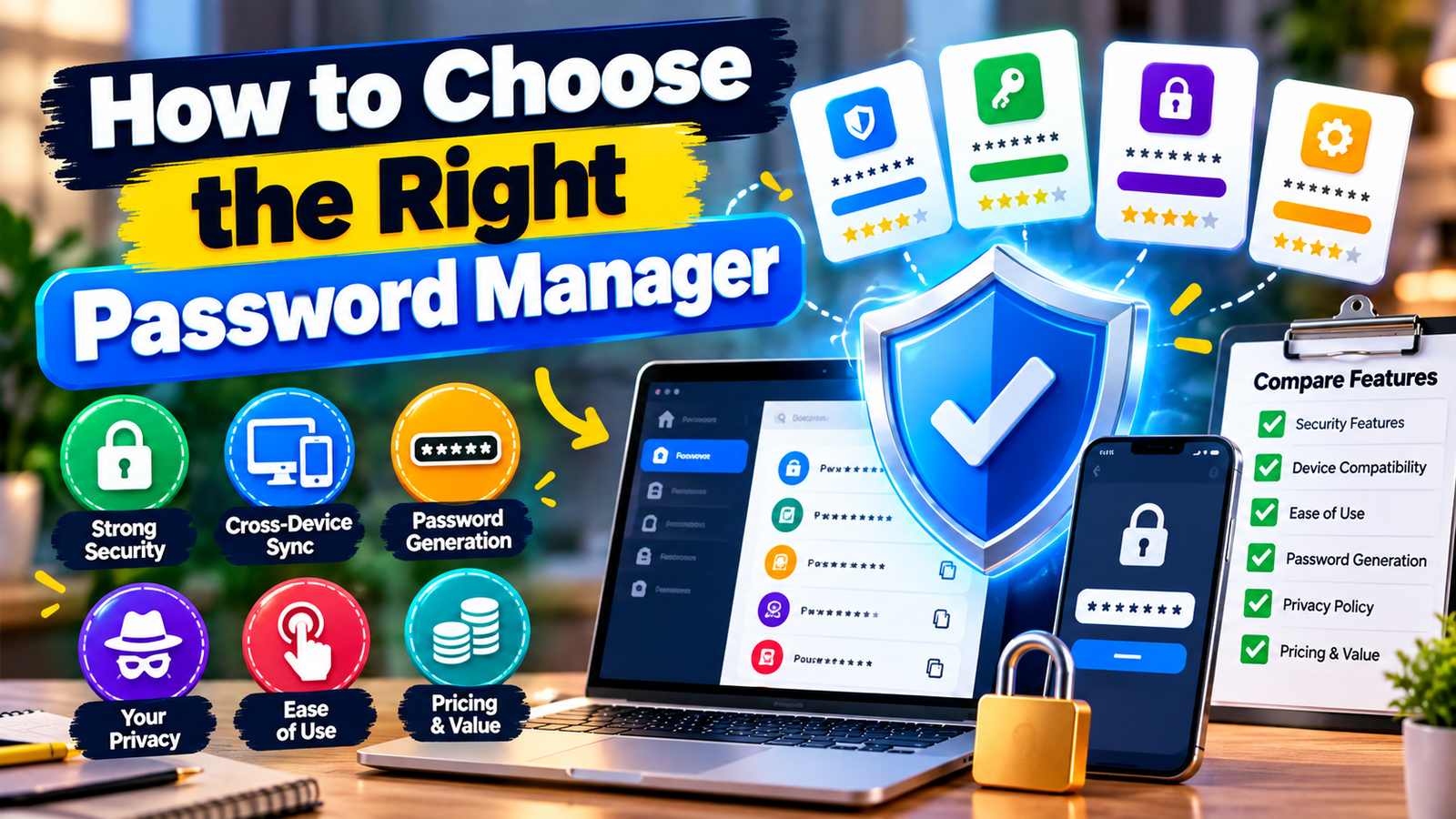
2. Check Device Compatibility
Your password manager should support the devices you actually use. Check whether it works with your preferred desktop operating system, smartphone, tablet, and browser.
3. Look for Strong Authentication Options
Multi-factor authentication can add another layer of protection. Depending on the service, you may be able to use an authenticator application, security key, passkey, or another supported method.
4. Review Recovery Options
Account recovery deserves special attention. A highly secure system may also make account recovery more difficult if you lose access to your authentication methods. Understand what happens if you forget your master password or lose a device.
5. Consider Independent Security Reviews
Security audits and independent assessments can provide useful information, although an audit should not be treated as a guarantee that a service can never experience a security problem.
6. Evaluate Ease of Use
The best security system is difficult to maintain if it is frustrating to use. Look for reliable browser extensions, mobile applications, password generation, autofill, search, and straightforward account management.
How to Set Up a Password Manager
Setting up a Password Manager is usually straightforward, but the initial process deserves careful attention because you are creating a central place for many sensitive credentials.
Step 1: Choose a Reputable Service
Research the available options and review their security documentation, supported platforms, privacy policies, authentication features, and recovery procedures.
Step 2: Create a Strong Master Password
Your master password should be long, unique, and difficult to guess. Avoid using a password that you already use anywhere else.
A memorable passphrase made from several unrelated words can be easier to remember than a short password filled with symbols. The exact requirements depend on the service you select.
Step 3: Enable Multi-Factor Authentication
If the service supports multi-factor authentication, consider enabling it. This can help protect your account if someone obtains your password.
Step 4: Install the Official Apps and Browser Extension
Install applications and browser extensions from official sources. Keep them updated so that you receive security fixes and improvements.
Step 5: Import or Add Your Existing Passwords
You may be able to import credentials from your browser or another password manager. Review imported records carefully and remove unnecessary or outdated entries.
Step 6: Replace Reused Passwords
Start with important accounts such as email, banking, cloud storage, and social media. Replace reused passwords with unique credentials generated by the password manager.
How to Create Strong Passwords
A Password Manager can generate passwords that are difficult to guess because they can be long, random, and unique. This removes the need to invent a different password manually for every website.
When a website allows it, use a long generated password rather than a predictable phrase based on your name, birthday, company, pet, or other publicly available information.
Avoid patterns such as:
- Password123
- Summer2026
- CompanyName123
- YourName@123
- The same password used across several websites
The goal is not to create passwords that are easy for humans to remember. The password manager is responsible for remembering them.Password ManagerPassword Manager
Password Manager vs Browser Password Storage
Modern browsers can store and autofill passwords, so users may wonder whether a dedicated Password Manager is necessary.
| Feature | Browser Storage | Dedicated Password Manager |
|---|---|---|
| Password storage | Usually available | Core feature |
| Password generation | Usually available | Usually available |
| Cross-platform support | Depends on browser ecosystem | Often designed for multiple platforms |
| Secure notes | Limited or unavailable | Common feature |
| Password organization | Basic to moderate | Often more extensive |
| Security monitoring | Varies | Often available |
Browser-based storage can be convenient, particularly if you primarily use one browser ecosystem. A dedicated password manager may offer broader organization and additional security features. The appropriate choice depends on your devices, security needs, and preferred workflow.
How to Organize Your Password Vault
Once you start using a Password Manager, organization becomes useful. A large vault can become difficult to search if every account has a vague or inconsistent name.
Use clear names for websites and services. Where supported, organize entries into categories such as:
- Banking
- Shopping
- Social media
- Work
- Education
- Travel
- Subscriptions
- Utilities
Remove duplicate records and outdated credentials when you are confident they are no longer needed. Keep secure notes separate from ordinary text files and avoid copying sensitive information into unprotected documents.
Using a Password Manager on Mobile Devices
A Password Manager can be particularly useful on smartphones because mobile users frequently sign in to applications and websites.
After installing the official application, configure the supported autofill service according to your phone’s settings. You may also need to enable biometric authentication, such as fingerprint or face recognition, depending on your device and the password manager.
Always keep your phone protected with a strong device passcode and current security updates. A password manager is only one part of your overall security strategy.
Using a Password Manager for Work
Businesses can use a Password Manager to improve credential management across teams. Instead of sending passwords through email, chat, or spreadsheets, organizations can use controlled sharing features provided by appropriate business-focused services.
Business users should pay attention to access controls, administrator features, employee onboarding and offboarding, audit capabilities, and policies for shared credentials.
Employees should not share personal passwords with coworkers. Work accounts should also use unique credentials and appropriate multi-factor authentication where available.
Password Managers and Two-Factor Authentication
A Password Manager and two-factor authentication solve different parts of the security problem.
A password manager helps you create and store strong passwords. Two-factor authentication adds another verification step after the password. Using both can provide stronger account protection than relying on a password alone.
Where available, consider stronger authentication methods such as passkeys or hardware security keys for important accounts. The best option depends on the service and your personal circumstances.
Can a Password Manager Be Hacked?
No security system can honestly be described as completely immune to attack. Password managers are valuable security tools, but the provider, application, device, browser, and user’s account can all be relevant to the overall security picture.
If a password manager provider experiences a security incident, the impact depends heavily on its architecture, encryption, authentication system, and the type of information affected. This is why choosing a provider with transparent security documentation matters.
You should also protect your own devices, avoid suspicious browser extensions, use multi-factor authentication where appropriate, and keep software updated.
Common Password Manager Mistakes
Using a does not automatically make every account secure. Avoid these common mistakes.
Using a Weak Master Password
Your master password deserves more attention than any individual website password because it may protect access to your vault.
Reusing the Master Password
Never use the same password for your password manager and another online service.
Ignoring Multi-Factor Authentication
If appropriate authentication options are available, consider using them to provide additional protection.
Installing Untrusted Extensions
Only install browser extensions and applications from trustworthy sources. Malicious software can create serious security risks regardless of which password manager you use.
Keeping Old Accounts Forever
Review your vault occasionally. Close accounts you no longer need when practical and remove obsolete credentials from your active workflow.
Best Practices for Safe Password Management
Good password security is based on consistent habits rather than one application.
- Use a unique password for every important account.
- Use long, randomly generated passwords whenever supported.
- Protect your password manager with a strong master password.
- Enable multi-factor authentication when appropriate.
- Keep your operating system and applications updated.
- Use passkeys when supported and appropriate.
- Review security alerts promptly.
- Do not share passwords through ordinary email or messaging apps.
- Be cautious with unexpected login requests and phishing messages.
- Keep recovery information secure and up to date.
How Often Should You Change Passwords?
A makes it easier to change passwords when there is a reason to do so. Changing every password on a fixed schedule is not always necessary if the credentials are strong, unique, and protected.
Consider changing a password when there is evidence that it has been exposed, when you discover reuse, after an account compromise, or when a trusted service recommends a change following a security incident.
For particularly sensitive accounts, follow the security guidance provided by the relevant organization.
What Information Can a Password Manager Store?
Depending on the service, a Password Manager may store much more than website passwords.
- Usernames and passwords
- Secure notes
- Wi-Fi credentials
- Payment information
- Identity information
- Software licenses
- Recovery codes
- Passkeys
Because these records can contain highly sensitive information, only store data in features you understand and trust. Review the provider’s privacy and security documentation before adding especially sensitive information.
Free vs Paid Password Managers
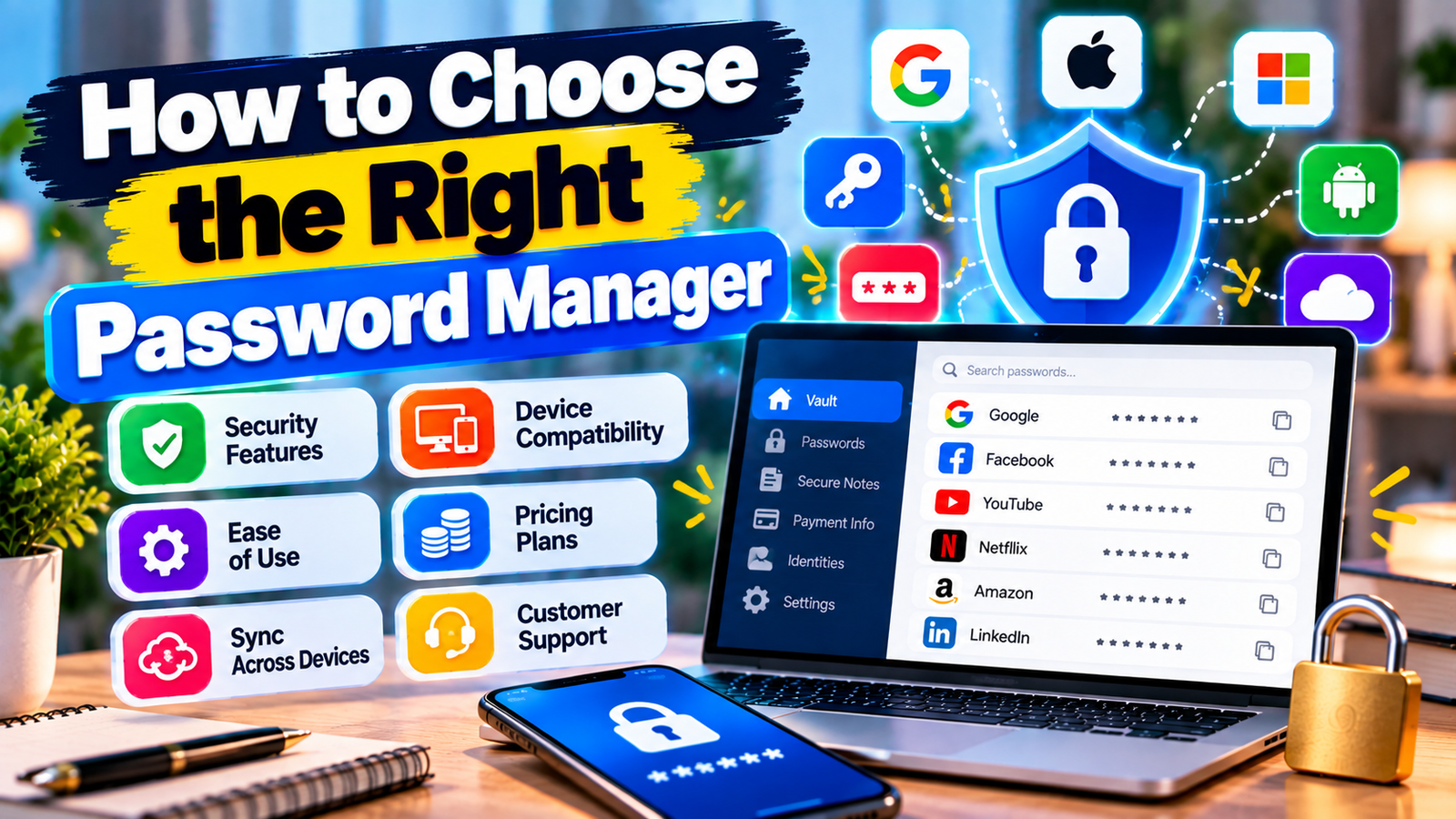
Both free and paid password management services exist. A free option may be sufficient for someone who needs basic credential storage, while paid plans may add features such as broader device support, secure sharing, advanced monitoring, family management, or business administration.
Features and pricing change over time, so check the provider’s official website before making a purchase. The most important consideration is whether the service provides the security and usability features you actually need.
Who Should Use a Password Manager?
Almost anyone with multiple online accounts can benefit from a It can be particularly useful for people who regularly create accounts, work across multiple devices, manage many business credentials, or struggle to maintain unique passwords.
Families and businesses may also benefit from secure sharing and account-management features, provided those features are configured correctly.
Frequently Asked Questions
What is the main purpose of a password manager?
The main purpose of a password manager is to securely store credentials and make it easier to use strong, unique passwords for different accounts. Many services also provide password generation, autofill, synchronization, and security monitoring.
Is it safe to use a password manager?
A reputable password manager can significantly improve password security when configured correctly. However, no technology eliminates every security risk. Choose a service with a clearly documented security design and protect your account with strong authentication.
Should every password be different?
Yes. Important accounts should use unique passwords so that a compromised credential from one service cannot simply be reused to access another account.
Can I use a password manager on my phone and computer?
Many password managers support multiple devices and operating systems. Check the specific service’s current platform support before choosing it.
Do password managers work with two-factor authentication?
Yes, many password managers work alongside two-factor authentication. Some can also store recovery codes or support additional authentication features, although the exact capabilities vary by provider.
What happens if I forget my master password?
The answer depends on the service’s account-recovery design. Some services provide recovery mechanisms, while others are intentionally designed to prevent the provider from accessing your vault. Read the recovery documentation before relying on a password manager for important accounts.
Conclusion
A can make strong password security much easier by storing credentials securely, generating unique passwords, and reducing the need to remember dozens of login details. The most important step is to choose a reputable service with a security model you understand and features that match your needs.
After setting up your r, focus on replacing reused passwords, protecting your main account, enabling appropriate multi-factor authentication, keeping your devices updated, and reviewing security alerts. Used as part of a broader security strategy, a password manager can make everyday online account management both safer and more convenient.