
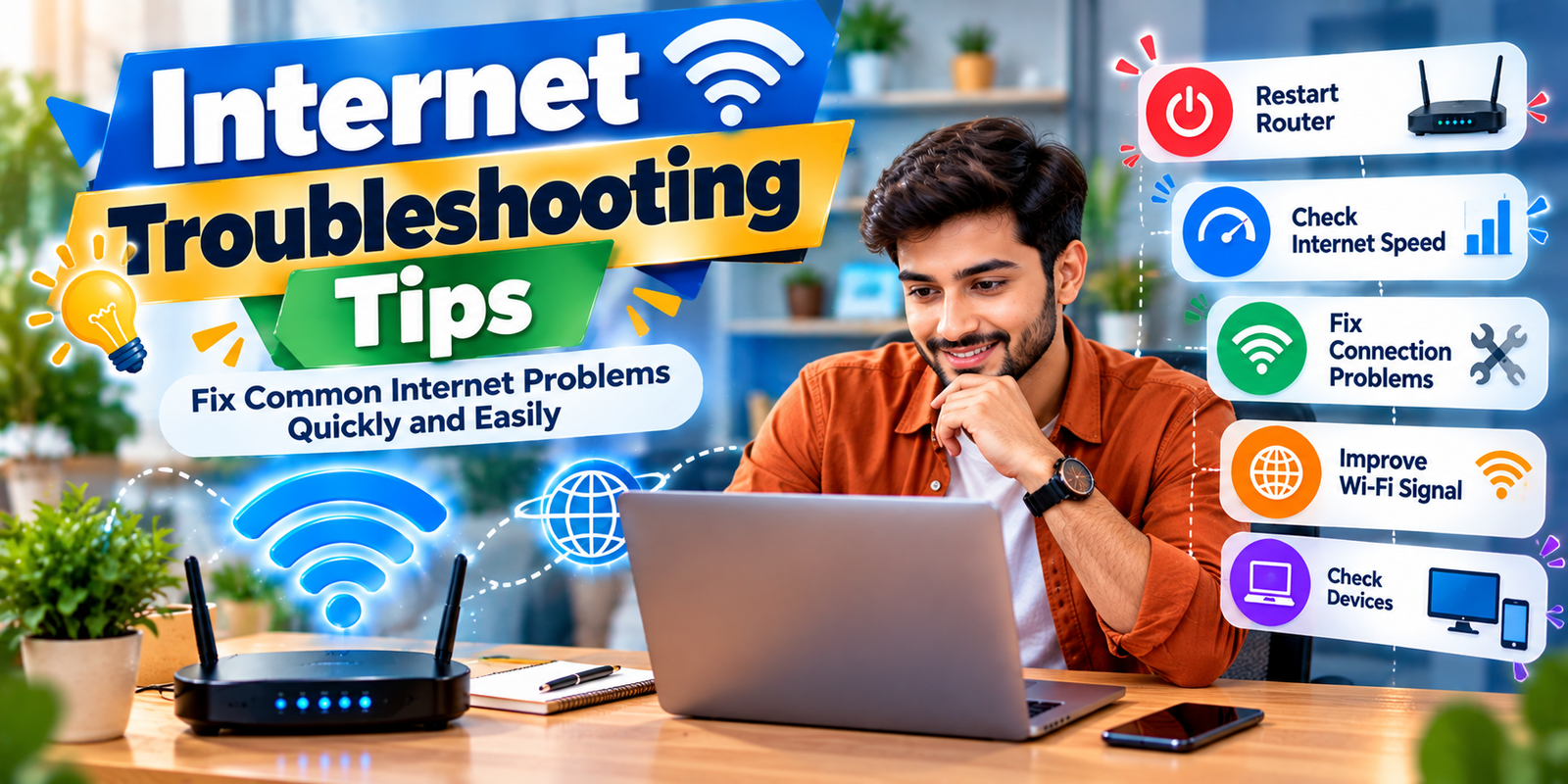
Internet problems can be frustrating, especially when a webpage will not load, videos keep buffering, or your connection suddenly becomes slow. The good news is that many everyday connection issues can be fixed without advanced technical knowledge. These Internet Troubleshooting Tips can help you identify the likely cause and restore your connection more quickly.
This guide explains practical ways to troubleshoot common internet problems. You will learn how to check your router, test your connection, improve Wi-Fi performance, deal with slow internet, fix connection drops, and identify when the problem may be with your internet service provider.
Start With a Quick Connection Check
Before changing advanced settings, perform a few basic checks. These simple Internet Troubleshooting Tips can help you avoid unnecessary changes when the problem is caused by something as simple as a loose cable or disabled Wi-Fi. For Windows users, the official Microsoft Wi-Fi troubleshooting guide also provides step-by-step connection checks.
- Check whether Wi-Fi is turned on.
- Make sure your device is connected to the correct network.
- Look at the router lights for unusual indicators.
- Check that Ethernet cables are firmly connected.
- Try opening more than one website.
- Check whether other devices have the same problem.
If only one website fails to load while other websites work normally, the problem may not be your internet connection. If every device in your home is offline, the router, modem, or internet service may need attention.
Restart Your Router and Modem
Restarting network equipment is one of the most useful Internet Troubleshooting Tips because it can resolve temporary connection problems. Routers and modems can occasionally experience software or connection issues that disappear after a restart.
To restart your equipment, turn off the modem and router if they are separate devices. Wait for about 30 seconds, then turn the modem back on. Give it time to reconnect to the internet before turning the router back on. Wait another minute or two before testing the connection.
If your internet works normally after restarting the equipment, the issue may have been temporary. If the same problem happens frequently, further troubleshooting may be necessary.

Check Whether the Problem Is Wi-Fi
Sometimes your internet service is working correctly, but the Wi-Fi connection is weak or unstable. One of the practical Internet Troubleshooting Tips is to connect a device directly to the router with an Ethernet cable, if possible.
If the wired connection works well but Wi-Fi remains slow or unreliable, focus your troubleshooting on the wireless network rather than the internet service itself.
Move Closer to the Router
Wi-Fi signals can become weaker as you move farther away from the router. Walls, floors, furniture, and certain electronic devices can also affect wireless performance.
Try using your device closer to the router. If the connection improves significantly, the problem may be related to Wi-Fi coverage.
Reduce Wireless Interference
Place the router in a relatively open and central location rather than inside a cabinet or behind large objects. Keeping it away from sources of interference may also help improve connection stability.
Test Your Internet Speed
If websites load slowly, downloads take too long, or streaming frequently buffers, run an internet speed test. Comparing the result with your expected service level is another useful part of these Internet Troubleshooting Tips. The FCC also recommends speed testing when checking broadband performance and suggests contacting the provider if speeds are lower than expected.
Remember that speed-test results can change depending on the device, Wi-Fi signal, network traffic, and test server. A single test does not always explain the entire problem.
For a more useful result, perform several tests at different times and, when possible, compare a wired connection with Wi-Fi.
Fix Slow Internet Problems
Slow internet can have several causes. The problem may come from a weak Wi-Fi signal, too many connected devices, background downloads, an overloaded network, or an issue with the internet provider. The following Internet Troubleshooting Tips can help narrow down the cause.
- Restart your modem and router.
- Move closer to the router.
- Pause large downloads and uploads.
- Close applications using heavy network traffic.
- Disconnect devices that are not currently needed.
- Test the connection with an Ethernet cable.
- Run another speed test.
If the connection remains slow on multiple devices and at different times, contact your internet provider and ask whether there is a known service issue.

Fix Frequent Internet Disconnections
Frequent disconnections can make video calls, online meetings, gaming, and streaming difficult. These Internet Troubleshooting Tips start by determining whether the problem affects one device or the entire network.
If only one device disconnects, restart that device and check its network settings. If every device loses connection at the same time, investigate the router, modem, cables, or internet service.
Also check whether the router becomes unusually hot or restarts by itself. Persistent hardware problems may require support or replacement.
Check Your Network Cables
A damaged or loose cable can cause unstable internet access. Checking your cables is one of the basic Internet Troubleshooting Tips that should be completed before changing advanced network settings.
- Make sure connectors are fully inserted.
- Look for visible damage.
- Check whether the cable is sharply bent.
- Try another compatible Ethernet cable when available.
If replacing a cable solves the problem, the original cable may have been causing the connection issue.
When Websites Will Not Load
If your browser cannot open websites, first determine whether the issue affects one website or many websites. This simple check is one of the most helpful Internet Troubleshooting Tips because it separates website-specific problems from broader connection issues.
If only one website is unavailable, try opening another website. You can also try the same website on another device. If several websites fail to load, restart your network equipment and check the device’s connection.
Clearing browser cache data or trying another browser can also help when the problem appears to be limited to one browser.
Check DNS Problems
DNS, or Domain Name System, helps translate website names into the network addresses computers use to locate online services. Understanding this basic function can make Internet Troubleshooting Tips easier to apply when websites fail to open.
One way to identify a possible DNS problem is to check whether some online services work while website names consistently fail to resolve. Restarting your router can sometimes refresh the connection. You can also troubleshoot DNS settings if you are comfortable changing network configuration.
For beginners, avoid changing advanced DNS settings without understanding what they do. If the issue continues, your internet provider or network administrator may be able to help.
Fix Wi-Fi Authentication Errors
If your device says the Wi-Fi password is incorrect even though you believe it is correct, carefully re-enter the password. These Internet Troubleshooting Tips can also help when a previously connected device suddenly refuses to join the wireless network.
Wi-Fi passwords are case-sensitive, so uppercase and lowercase letters matter. You can also forget the network on your device and connect again. This removes the saved wireless profile and allows you to enter the current password from the beginning.
If several devices suddenly cannot connect using the same password, check whether the router’s wireless settings have changed.
Check for Network Congestion
A home network can become busy when several devices use the connection at the same time. Streaming video, cloud backups, large downloads, online gaming, and video calls can all consume network capacity.
If your connection becomes slow mainly when many people are using it, identify which activities are using the most bandwidth. Scheduling large downloads or backups for less busy times can be one of the simplest Internet Troubleshooting Tips for a busy home network.
Improve Your Wi-Fi Signal
Router placement can make a noticeable difference to wireless coverage. A router placed in a central and elevated location may provide better coverage than one hidden behind furniture or placed in a corner.
For larger homes, a Wi-Fi extender or mesh networking system may help provide coverage in areas where the signal is weak. However, additional equipment will not automatically fix every internet problem. These Internet Troubleshooting Tips can help you determine whether the real issue is coverage, interference, or the internet connection itself.
Restart the Device With Problems
When only one computer, phone, or tablet has internet problems, restart that device before changing complicated settings. Temporary software or network errors can sometimes prevent a device from connecting correctly.
Restarting the affected device is among the easiest Internet Troubleshooting Tips to try because it does not require changes to your router configuration.
After restarting, check whether the device reconnects automatically. If it does not, reconnect to your Wi-Fi network and test the connection again.
Check Airplane Mode and Network Settings
On phones, tablets, and laptops, accidentally enabling Airplane Mode can disable wireless connections. Make sure Airplane Mode is turned off and Wi-Fi is enabled.
If the device still cannot connect, review its network settings. Basic Internet Troubleshooting Tips such as checking Wi-Fi and Airplane Mode should be completed before changing advanced configuration options.
Update Network Drivers and Software
On computers, outdated or corrupted network drivers can sometimes cause connectivity problems. Check for operating system updates and manufacturer-provided driver updates when appropriate.
Keeping networking software updated can also help address compatibility and stability problems. Only download drivers and software from trusted sources. This is an important safety point when following online Internet Troubleshooting Tips.
Use Built-In Network Troubleshooting Tools
Modern operating systems often include built-in tools that can diagnose common network problems. These tools may check the network adapter, connection settings, or other basic configuration issues.
Using built-in diagnostic tools is another useful part of Internet Troubleshooting Tips, especially when you are unsure which network setting may be causing the problem.
For Windows users, Microsoft Wi-Fi a built-in Network and Internet troubleshooter along with additional diagnostic steps. Follow the recommendations appropriate for your Windows version.
Check for an Internet Outage
If multiple devices suddenly lose internet access, the problem may be outside your home network. Your internet service provider could be experiencing an outage or maintenance issue.
Checking your provider’s official service-status information is one of the most important Internet Troubleshooting Tips when the entire household loses connectivity at the same time.
You can also contact customer support if the problem continues and your local equipment appears to be working normally.
Common Internet Troubleshooting Mistakes
People often make internet problems harder to solve by changing too many settings at once. Good troubleshooting works best when you make one change, test the connection, and then continue based on the result. The following Internet Troubleshooting Tips can help you avoid common mistakes.
- Do not reset the router repeatedly without checking the cause.
- Do not change advanced network settings without a reason.
- Do not assume slow Wi-Fi always means slow internet service.
- Do not ignore damaged cables or overheating equipment.
- Do not install unknown software that claims to repair your connection.
- Do not change several settings simultaneously because it becomes difficult to identify what fixed the problem.
A Simple Troubleshooting Process
When you experience an internet problem, follow a consistent process instead of trying random fixes. A structured approach makes these Internet Troubleshooting Tips more effective and helps you identify the source of the problem.
- Identify the symptom: Decide whether the problem is slow speed, no connection, weak Wi-Fi, or frequent disconnections.
- Check multiple devices: Find out whether the issue affects one device or the entire network.
- Check the router: Look at its lights and connections.
- Restart the equipment: Power-cycle the modem and router.
- Test the connection: Try another website or run a speed test.
- Compare Wi-Fi and wired access: This can help identify wireless problems.
- Check for an outage: Contact your provider if the problem affects the whole network.
When to Contact Your Internet Provider
You should consider contacting your internet provider when basic troubleshooting does not solve the problem, especially if several devices are affected. These Internet Troubleshooting Tips can help you gather useful information before contacting support.
Before contacting support, collect information such as when the problem started, how often it occurs, whether all devices are affected, and whether restarting the equipment helped.
This information can make it easier for support staff to understand the problem and determine whether the issue is related to your connection or their network.

When to Replace Networking Equipment
Routers and modems can eventually become unreliable, especially when they repeatedly restart, lose connections, or fail to provide stable coverage.
Before replacing equipment, confirm that the internet service itself is working correctly. If the provider confirms that the connection is fine but your equipment continues to fail, replacement may be worth considering. This final equipment check complements other Internet Troubleshooting Tips by helping separate service problems from hardware problems.
Secure Your Home Wi-Fi
Internet troubleshooting should also include basic wireless security. CISA recommends securing home wireless networks by changing default router credentials, using appropriate wireless encryption, enabling available security protections, and keeping networking equipment updated. You can review its wireless security guidance for additional information.
These security steps do not directly fix every connection problem, but they help protect the network while you diagnose and maintain your equipment.
Frequently Asked Questions
What should I check first when the internet stops working?
Start with basic Internet Troubleshooting Tips: check whether the problem affects one device or multiple devices, verify Wi-Fi and cables, check the router, and restart your modem or router.
Why is my Wi-Fi slow but my internet plan is fast?
Slow Wi-Fi can result from distance, walls, interference, router placement, network congestion, or device limitations. Test the connection near the router or with Ethernet to help identify the cause.
Why does my internet keep disconnecting?
Frequent disconnections can be caused by Wi-Fi interference, faulty cables, router problems, device issues, or problems with the internet service. Check whether all devices disconnect at the same time.
How can I tell if my internet provider is having an outage?
Check your provider’s official service-status information or contact customer support. If multiple devices lose connection at the same time, an external service problem is possible.
Should I reset my router if the internet is not working?
Restarting the router is a reasonable troubleshooting step, but a factory reset is different. Avoid a factory reset unless you know the configuration details and have a reason to restore the device to its default settings.
Conclusion
Many common internet problems can be diagnosed with a simple, organized process. Start with basic checks, determine whether the issue affects one device or the whole network, restart your equipment, and test the connection before changing advanced settings.
The most useful Internet Troubleshooting Tips are simple: check the cables, verify Wi-Fi, restart the router, compare wired and wireless connections, test your speed, and check for service outages. If the problem continues after these steps, your internet provider or a qualified technician can help identify more complicated network issues.