
This Internet basics guide explains how the internet works in simple language. Internet basics for beginners You will learn what the internet is, how websites work, what a web browser does, how search engines find information, how email works, what Wi-Fi and mobile data mean, and how to protect your privacy and security online.
What Is the Internet?
The internet is a worldwide network of connected devices that communicate with one another using standardized communication protocols. These devices can include computers, smartphones, tablets, servers, routers, smart TVs, and many other connected devices.
When you visit a website, send an email, watch a video, or use an online application, your device communicates with other computers through the internet. Information is divided into small units called packets, sent across networks, and reassembled when they reach their destination.
In simple terms, think of the internet as a huge communication network.Internet basics for beginners Your device connects to a local network, that network connects to an internet service provider, and the provider connects your request to other networks and servers around the world.
Internet vs. World Wide Web
The terms “internet” and “web” are often used interchangeably, but they are not exactly the same.
- Internet: The global network infrastructure that allows connected devices and networks to communicate.
- World Wide Web: A service that uses the internet to provide interconnected websites and web pages.
- Email: Another internet-based service used to send and receive electronic messages.
- Online applications: Services such as cloud storage, video conferencing, banking platforms, and web-based productivity tools that use internet connectivity.
The web is therefore one of the services that operates over the internet.
How Does the Internet Work?
Understanding every technical detail is not necessary for a beginner. Internet basics for beginnersAt a basic level, internet communication follows a simple process.
- You connect your device to the internet through Wi-Fi, mobile data, Ethernet, or another connection.
- You enter a website address or search for information.
- Your device sends a request through your network and internet service provider.
- The request travels through multiple network devices toward the appropriate server.
- The server processes the request and sends information back.
- Your browser or application displays the returned information.
For example, when you type a website address into a browser, your device needs to locate the server hosting that website.Internet basics for beginners The Domain Name System helps translate the human-readable domain name into an IP address that computers can use to identify the destination.
What Is an Internet Service Provider?
An Internet Service Provider (ISP) is a company or organization that provides internet access to customers. Depending on the location and service available, an ISP may provide connectivity through fiber, cable, DSL, fixed wireless, satellite, or other technologies.
Your ISP connects your home, office, or mobile device to the wider internet. It may also provide additional services such as email accounts, customer support, security features, or internet equipment.
What Is a Web Browser?
A web browser is software that allows you to access and interact with websites. Common browsers include Google Chrome, Mozilla Firefox, Microsoft Edge, Apple Safari, and other compatible applications.
When you enter a web address, the browser retrieves information from the appropriate web server and displays the page.Internet basics for beginners Modern browsers can also run web applications, play multimedia, save bookmarks, manage downloads, and provide security warnings.Internet basics for beginners.
Basic Browser Features
- Address bar: Used to enter website addresses or search queries.
- Tabs: Allow you to open multiple web pages in one browser window.
- Back and forward buttons: Help you move between recently visited pages.
- Bookmarks: Save useful websites for quick access later.
- History: Shows websites you have recently visited.
- Downloads: Provides access to files downloaded through the browser.
- Private browsing: Limits certain local browsing records, although it does not make you anonymous online.
What Is a Website?
A website is a collection of related web pages and resources available through the web.Internet basics for beginners Websites can provide information, entertainment, communication, education, shopping, banking, business services, and many other functions.
A website may contain text, images, videos, audio, forms, buttons, documents, and interactive features. Some websites are simple informational pages, while others operate as complex web applications.
What Is a URL?
A URL, or Uniform Resource Locator, is the address used to locate a resource on the web.
A typical URL may contain several parts:
- Protocol: Indicates how the browser should communicate with the destination, such as HTTPS.
- Domain name: Identifies the website, such as example.com.
- Path: Identifies a specific page or resource on the website.
- Query parameters: May provide additional information to the server.
Internet basics for beginners The browser uses this address to request the specified resource.
What Is a Domain Name?
A domain name is the human-readable name people use to access a website.Internet basics for beginners Instead of remembering a numerical IP address, users can enter a domain name into a browser.
Domain names can have different extensions, such as .com, .org, .edu, or country-specific extensions.Internet basics for beginners The domain name system helps connect these names with the numerical network addresses used by computers.Internet basics for beginners.
What Is an IP Address?
An IP address is a numerical or hexadecimal address used to identify a device or network interface for communication on an IP network.
Two major versions are IPv4 and IPv6. IPv4 uses addresses such as 192.0.2.1, while IPv6 provides a much larger address space using hexadecimal notation.Internet basics for beginners.
For everyday internet use, you usually do not need to memorize an IP address. Internet basics for beginnersDomain names and applications handle much of this process for you.
What Is DNS?
DNS stands for Domain Name System. It works like a directory that helps translate domain names into IP addresses.
When you enter a domain name into your browser, a DNS lookup helps determine where the request should go. Without DNS, users would generally have to remember numerical network addresses instead of convenient domain names.
What Is HTTPS?
HTTPS stands for Hypertext Transfer Protocol Secure.Internet basics for beginners It uses encryption to help protect communication between your browser and a website.
When a website uses HTTPS, information exchanged between your browser and the website is protected against many forms of interception during transmission. A browser may display a lock or similar security indicator for a properly configured HTTPS connection.
HTTPS is important, but it does not automatically mean that a website is trustworthy. Scammers can also use HTTPS. Always check the domain name and consider whether the website itself is legitimate.
What Is a Search Engine?
A search engine helps users find information available online. Examples include Google, Bing, and other search services.
Search engines generally discover web pages through automated systems, store information about those pages in large indexes, and then use ranking systems to determine which results are most useful for a particular search.
How to Search the Internet Effectively
Good search habits can save time and help you find more reliable information.
- Use specific words instead of a very broad query.
- Add a location when you need local information.
- Include the product, organization, or topic name when appropriate.
- Use quotation marks when looking for an exact phrase.
- Compare information across more than one reliable source.
- Check the publication date when information may change over time.
- Be cautious with sensational headlines and unsupported claims.
What Is Wi-Fi?
Wi-Fi is a wireless networking technology that allows compatible devices to connect to a local network without a physical Ethernet cable.
At home, a Wi-Fi router commonly connects phones, laptops, tablets, televisions, and other devices to the internet through an ISP connection.
Wi-Fi itself is not the same thing as the internet. Wi-Fi provides a wireless connection to a network, while the internet is the larger global network that your local network may connect to.
Wi-Fi vs. Mobile Data
| Feature | Wi-Fi | Mobile Data |
|---|---|---|
| Connection | Usually connects through a wireless router or access point | Connects through a cellular network |
| Common location | Homes, offices, schools, hotels, and public spaces | Available wherever supported cellular service exists |
| Equipment | Usually requires a compatible router or access point | Requires a supported mobile device and cellular service |
| Usage limits | Depends on the internet plan | Often depends on a mobile data allowance |
Both methods can provide internet access, but the quality and cost depend on the network, service plan, location, and other factors.
What Is a Router?
A router is a networking device that directs data between networks.Internet basics for beginners In a typical home setup, the router helps connect local devices to the internet connection provided by the ISP.
Many home routers also provide Wi-Fi, allowing wireless devices to connect to the local network. Some devices combine routing, wireless access, modem, and other functions into a single unit.
What Is a Server?
A server is a computer or computing system that provides resources or services to other devices, commonly called clients.
For example, a web server can store and deliver website resources. When you open a web page, your browser may request files and data from servers that host or support that website.
Large online services often use many servers and data centers rather than relying on one physical machine.
What Is Cloud Computing?
Cloud computing means using computing resources over a network, often the internet, instead of relying entirely on hardware located directly on your device.
Cloud services can provide storage, computing power, databases, software, backups, collaboration tools, and other resources. Examples include online file storage, web-based office applications, and hosted business systems.
Cloud computing does not mean that your data exists in an invisible place. Cloud services rely on physical servers, networking equipment, storage systems, and data centers.
What Is Email?
Email is a system for sending and receiving electronic messages over computer networks. An email account typically has an address consisting of a username and a domain.
Email can be accessed through a web browser, desktop application, or mobile app. Messages may contain text, images, documents, and other attachments.
Basic Email Terms
- Inbox: Where received messages are normally stored.
- Sent: Contains messages you have sent.
- Drafts: Stores messages that have not yet been sent.
- Spam: Contains messages identified as potentially unwanted.
- Attachment: A file included with an email.
- CC: Sends a visible copy to additional recipients.
- BCC: Sends a copy without showing that recipient to other recipients.
What Is a Download?
Downloading means transferring data from a remote computer or service to your device. Internet basics for beginnersYou might download a document, image, application, video, or other file.
Always consider the source before downloading a file. Unknown files can contain malware or other unwanted software. Avoid opening unexpected attachments or installing applications from untrusted websites.
What Is an Upload?
Uploading is the opposite direction: transferring data from your device to a remote service or computer.Internet basics for beginners
Examples include uploading a photo to cloud storage, attaching a document to an online form, posting a video, or submitting a file to a website.
Understanding Internet Speed
Internet speed is commonly measured in bits per second, such as megabits per second (Mbps) or gigabits per second (Gbps).Internet basics for beginners
Higher bandwidth can allow more data to be transferred over a given period, but your real-world experience also depends on latency, network congestion, server performance, Wi-Fi quality, device capability, and the service you are using.
Download Speed and Upload Speed
- Download speed: Measures how quickly data can generally travel from an online service to your device.
- Upload speed: Measures how quickly data can generally travel from your device to an online service.
- Latency: Refers to the delay involved in data communication.
For activities such as browsing and video streaming, download performance is often important. Upload performance becomes particularly relevant when sending large files, backing up photos, publishing videos, or participating in certain video calls.
What Is a Browser Tab?
A browser tab lets you open a separate web page or web application within the same browser window. Tabs are useful when researching a topic because you can keep several sources open at the same time.
However, having too many tabs open can make navigation difficult and may consume additional system resources. Closing tabs you no longer need can keep your workspace organized.Internet basics for beginners.
What Are Cookies?
Cookies are small pieces of information that websites can store in your browser. They can be used for functions such as remembering preferences, maintaining login sessions, and supporting certain website features.
Some cookies are necessary for a website to function, while others may be used for analytics, personalization, or advertising. Cookie behavior and controls vary by browser and website.
What Is a Cache?
A cache stores copies of certain resources so they can sometimes be loaded more quickly the next time they are needed.
Browsers commonly cache images, scripts, and other website resources. Clearing a browser cache can occasionally help troubleshoot display or loading problems, although it may also cause websites to reload resources again.
Basic Internet Safety Rules
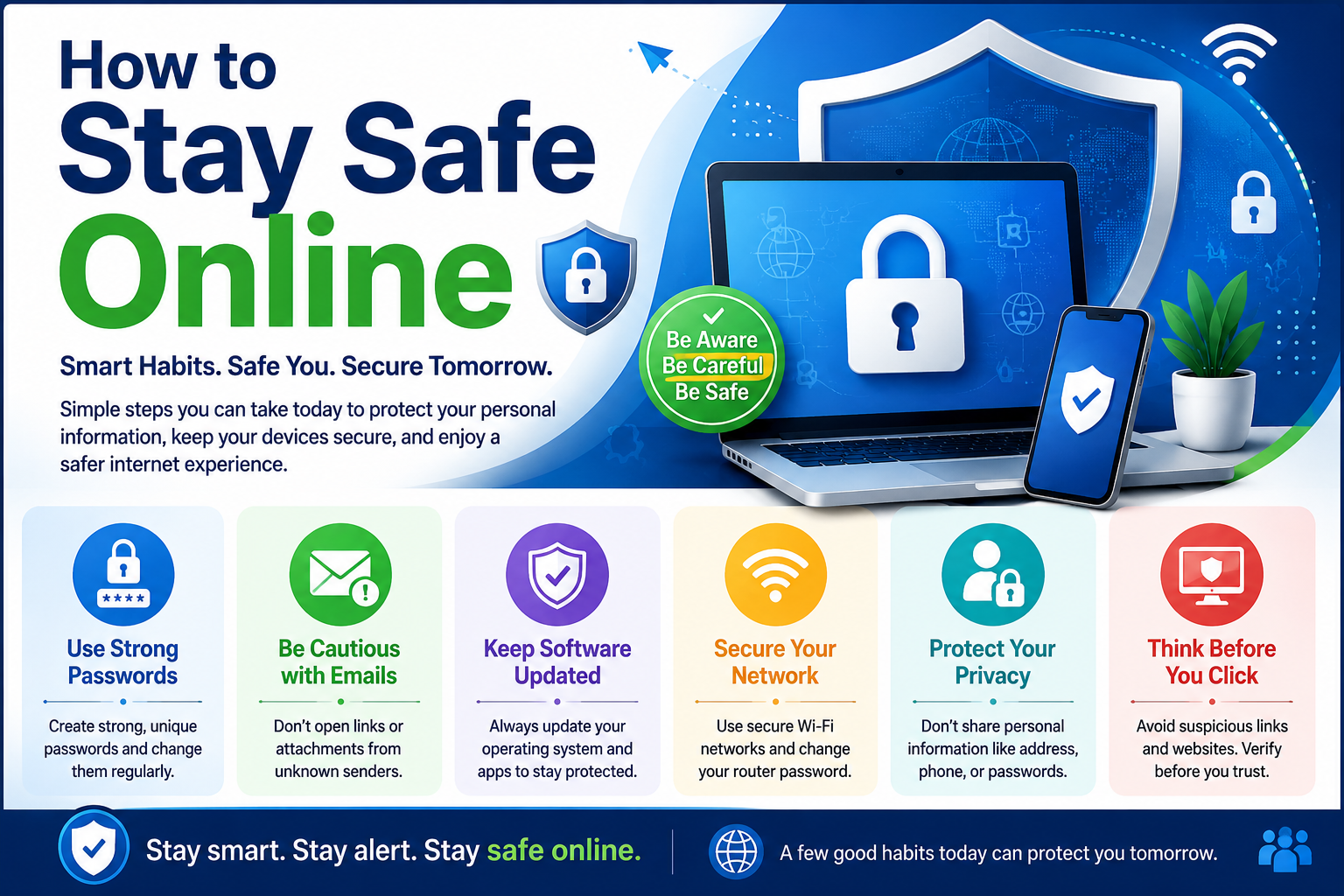
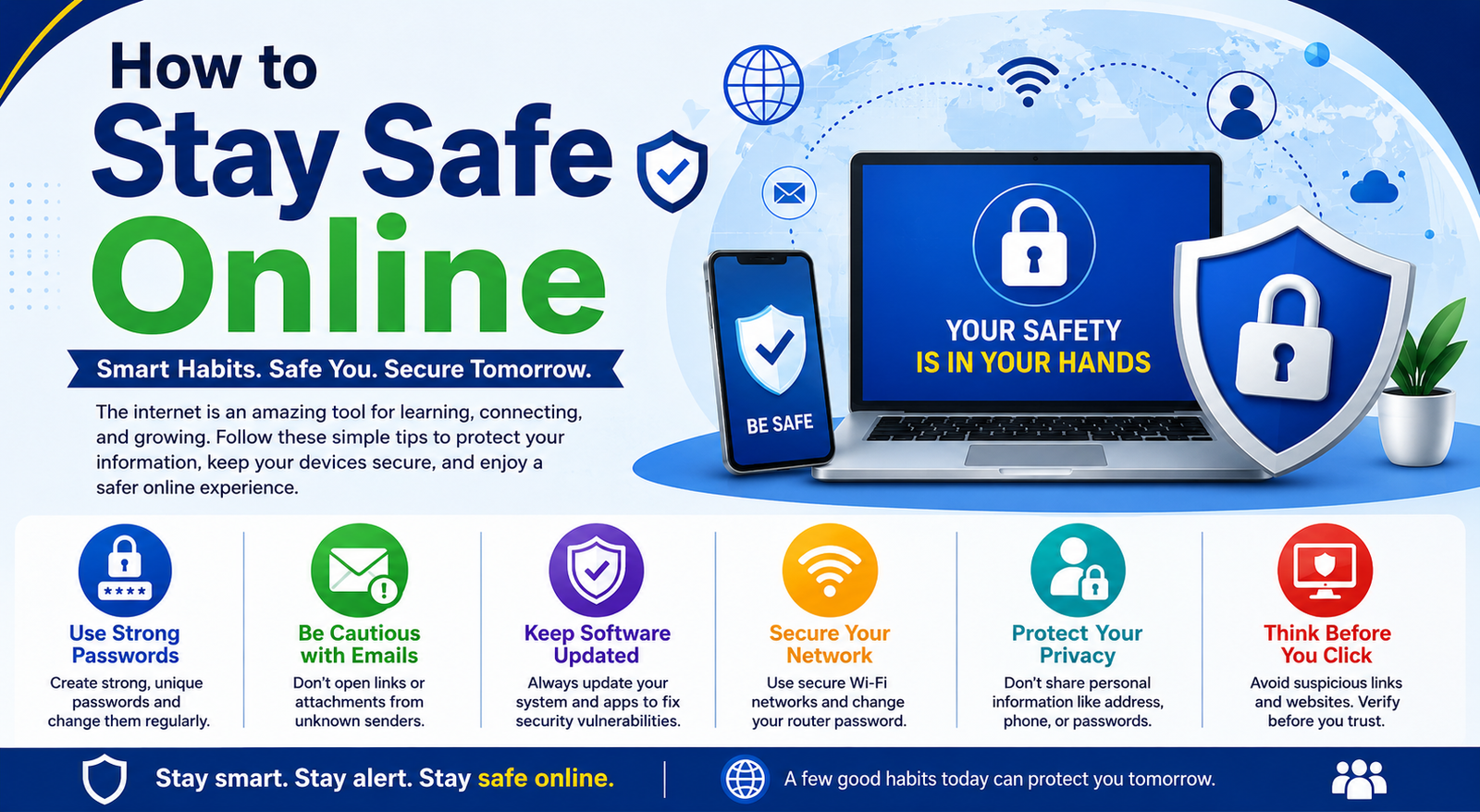
Learning internet basics should also include learning how to use the internet safely. You do not need advanced technical skills to improve your online security.Internet basics for beginners.
Use Strong, Unique Passwords
Use a different strong password for each important account. Reusing one password across multiple services can increase the damage caused if one account is compromised.
A password manager can help you create and store unique passwords without requiring you to memorize every password.
Turn On Multi-Factor Authentication
Multi-factor authentication, often called MFA or two-factor authentication, adds another verification step to an account. Depending on the service, this may involve an authenticator app, security key, or another verification method.
MFA can provide additional protection if someone obtains your password.
Recognize Phishing Attempts
Phishing is a common type of online fraud in which attackers attempt to trick people into revealing passwords, financial information, verification codes, or other sensitive information.
Be cautious when a message creates urgency, threatens account closure, requests unexpected payments, or asks you to click a suspicious link. Instead of using the message’s link, visit the organization’s official website directly when possible.
Keep Software Updated
Install security updates for your operating system, browser, applications, and other supported software. Updates can include security fixes and improvements.
Be Careful on Public Networks
Public Wi-Fi can be useful, but you should avoid assuming that every public network is trustworthy. Confirm the network name when possible and avoid entering sensitive information on suspicious websites or networks.
Protect Personal Information
Think carefully before sharing your address, identification information, financial details, passwords, or other sensitive information online. Review privacy settings on social networks and online services regularly.
How to Identify a Suspicious Website
A suspicious website may show warning signs such as an unusual domain name, excessive urgency, unrealistic offers, poor-quality content, unexpected payment requests, or requests for sensitive information without a clear reason.
A professional appearance alone does not prove that a website is legitimate. Check the domain carefully and consider whether the information comes from an official or trusted source.
How to Use the Internet Responsibly
Being a responsible internet user means thinking about how your actions affect yourself and others.
- Respect copyright and intellectual property.
- Do not share private information about other people without permission.
- Verify important claims before sharing them.
- Communicate respectfully.
- Report scams, abuse, or suspicious activity through appropriate channels.
- Use legitimate websites and services whenever possible.
- Keep backups of important personal files.
Common Internet Mistakes Beginners Should Avoid
Using the Same Password Everywhere
One compromised password can put several accounts at risk. Use unique passwords for important services.
Clicking Every Link in an Email
Do not assume that a message is legitimate simply because it appears to come from a familiar company. Check the sender and destination carefully.
Ignoring Browser Security Warnings
Browser warnings can indicate that a website or connection has a security problem. Do not automatically bypass warnings without understanding the risk.
Downloading Software From Unknown Sources
Use reputable sources and official websites when downloading applications. Internet basics for beginnersAvoid pirated software and suspicious download portals.
Believing Everything You Read Online
The internet contains excellent information as well as incorrect, misleading, outdated, and deliberately false content. For important topics, compare information from reliable sources.
Sharing Too Much Personal Information
Information posted publicly can be copied, saved, or redistributed.Internet basics for beginners Consider the long-term consequences before sharing personal details.
Simple Internet Skills Every Beginner Should Learn
If you are just starting out, focus on these practical skills first:
- Open and navigate a web browser.
- Enter a URL correctly.
- Search for information using specific terms.
- Open and manage browser tabs.
- Recognize secure website connections.
- Create and manage strong passwords.
- Use email and attachments safely.
- Download and upload files carefully.
- Identify common phishing attempts.
- Adjust basic privacy and security settings.
- Use cloud storage for appropriate files.
- Keep your device and applications updated.
Frequently Asked Questions About Internet Basics
What is the internet in simple words?
The internet is a worldwide network of connected devices and networks that allows computers and other devices to exchange information and use online services.
What is the difference between Wi-Fi and the internet?
Wi-Fi is a wireless networking method that connects your device to a local network.Internet basics for beginners The internet is the much larger global network that your local network may access through an ISP.
What is a web browser used for?
A web browser is used to access websites and web applications. Internet basics for beginnersIt can also support tasks such as searching, downloading files, saving bookmarks, and managing web sessions.
What are the most important Internet basics for beginners?
The most important skills include using a browser, searching effectively, understanding URLs and websites, managing email, downloading files safely, protecting passwords, recognizing phishing, and keeping software updated.
Is HTTPS enough to know that a website is safe?
No. HTTPS helps protect the connection between your browser and the website, but it does not prove that the website itself is legitimate. Always check the domain and consider the site’s trustworthiness.
How can beginners stay safe online?
Use strong unique passwords, enable multi-factor authentication, keep software updated, avoid suspicious links and downloads, protect personal information, and verify important information before acting on it.
Conclusion
Learning internet basics gives you the foundation needed to use online services with greater confidence.Internet basics for beginners The key concepts are straightforward: your device connects to a network, networks communicate across the internet, DNS helps locate websites, browsers display web content, and servers provide online resources.Internet basics for beginners.
As a beginner, focus first on practical skills such as browsing, searching, email, file transfers, Wi-Fi, passwords, privacy, and phishing awareness. You do not need to understand every technical detail immediately.Internet basics for beginners By learning these fundamentals and building safe online habits, you can make better use of the internet while reducing common security and privacy risks.Internet basics for beginners.