
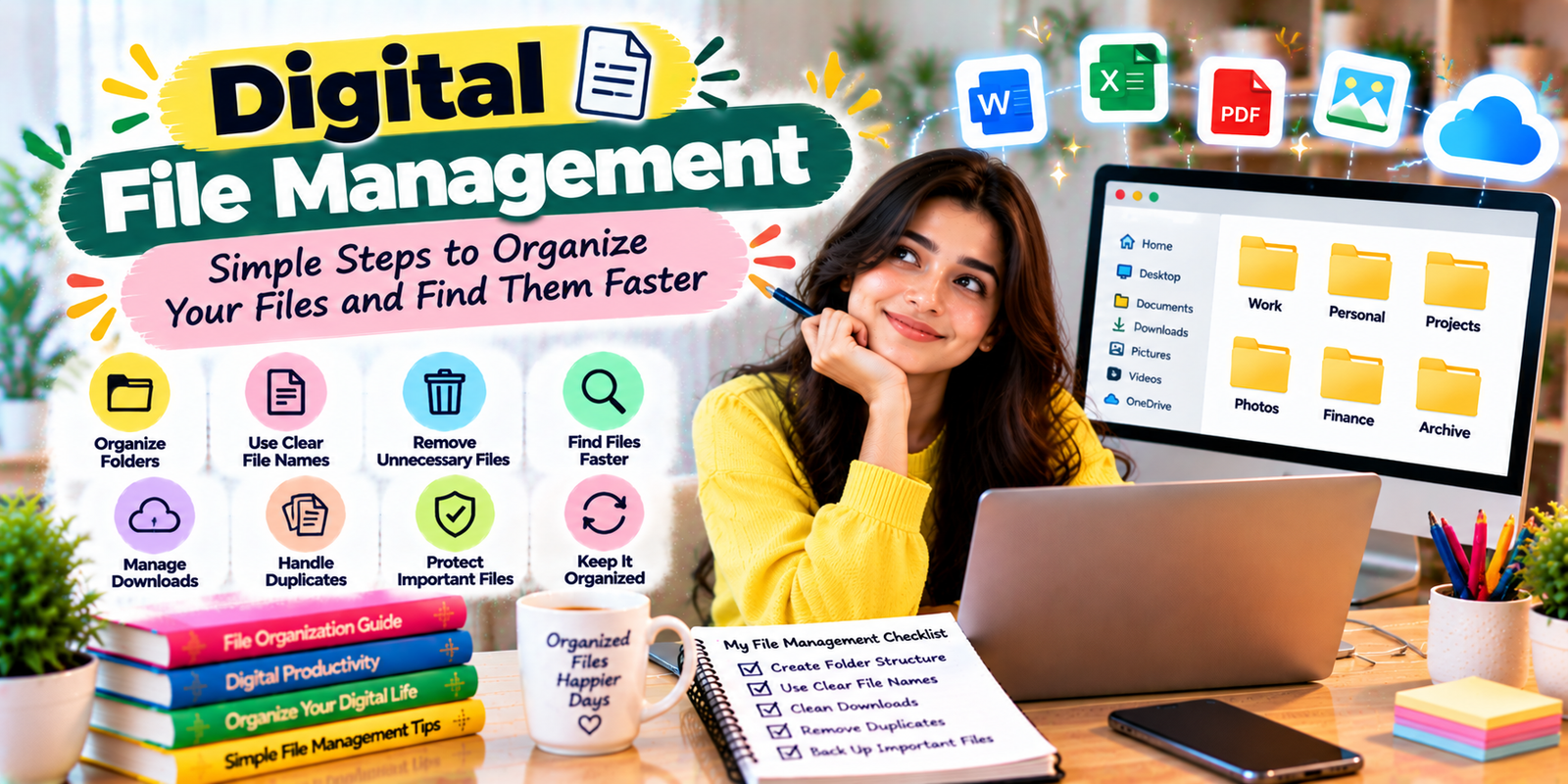
Good Digital File Management makes it easier to find documents, photos, downloads, projects, and other digital files when you need them. Instead of searching through crowded folders or creating multiple copies of the same document, a simple organization system can save time and reduce digital clutter.
This complete guide explains how to organize files and folders on your computer and cloud storage. You will learn how to create a practical folder structure, use clear file names, remove unnecessary files, find documents faster, manage downloads, handle duplicates, protect important data, and maintain an organized system over time.
Quick Summary
- Create a simple folder structure based on projects, categories, or file types.
- Use clear and consistent file names.
- Keep your Downloads folder under control.
- Separate personal, work, school, and financial documents.
- Delete unnecessary files and safely manage duplicates.
- Use search, sorting, and shortcuts to find files quickly.
- Back up important files using a suitable backup method.
- Review your folders regularly instead of waiting for digital clutter to build up.
What Is Digital File Management?
Digital File Management is the process of organizing, naming, storing, finding, moving, backing up, and deleting digital files in a structured way. It applies to documents, images, videos, spreadsheets, PDFs, presentations, downloads, and other digital information.
A good system does not need to be complicated. The goal is to make it obvious where a file belongs and easy to find it later. Your system should also make it clear which files are important, which files can be archived, and which files can be deleted.
Why Is Digital File Management Important?
Effective Digital File Management can save time and reduce confusion. You may remember creating a document but have no idea where you saved it. You might also have several versions with names such as final.docx, final2.docx, and final-new.docx.
Organized files make everyday tasks easier because you spend less time searching and more time working. A consistent structure can also reduce accidental deletion, duplicated work, and confusion between old and current versions.
This approach is especially useful if you work with large numbers of documents, manage business projects, study online, create content, or regularly move files between computers and cloud storage.
Build a Simple Folder Structure
The foundation of effective Digital File Management is a folder structure that matches the way you actually work.
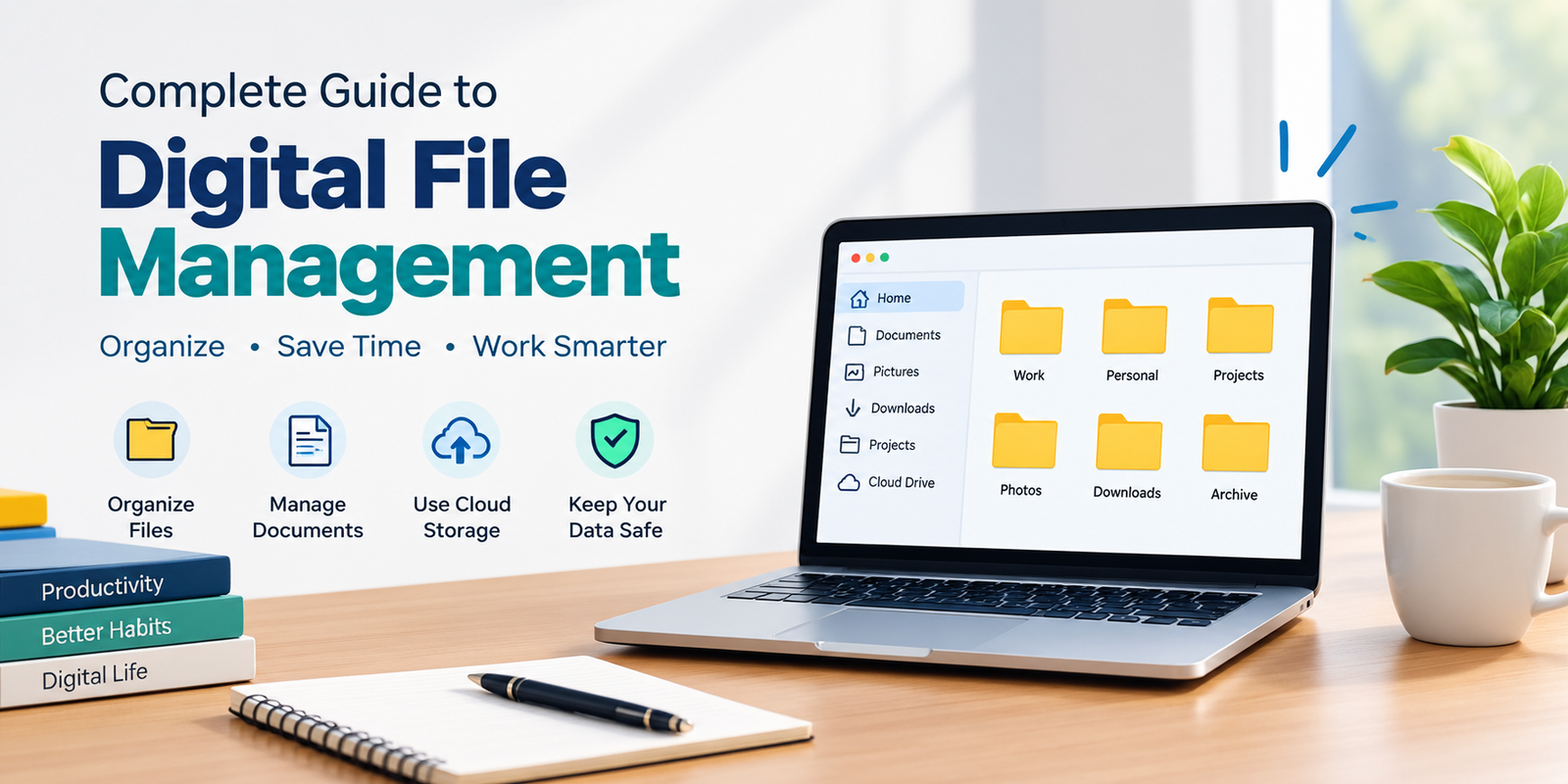
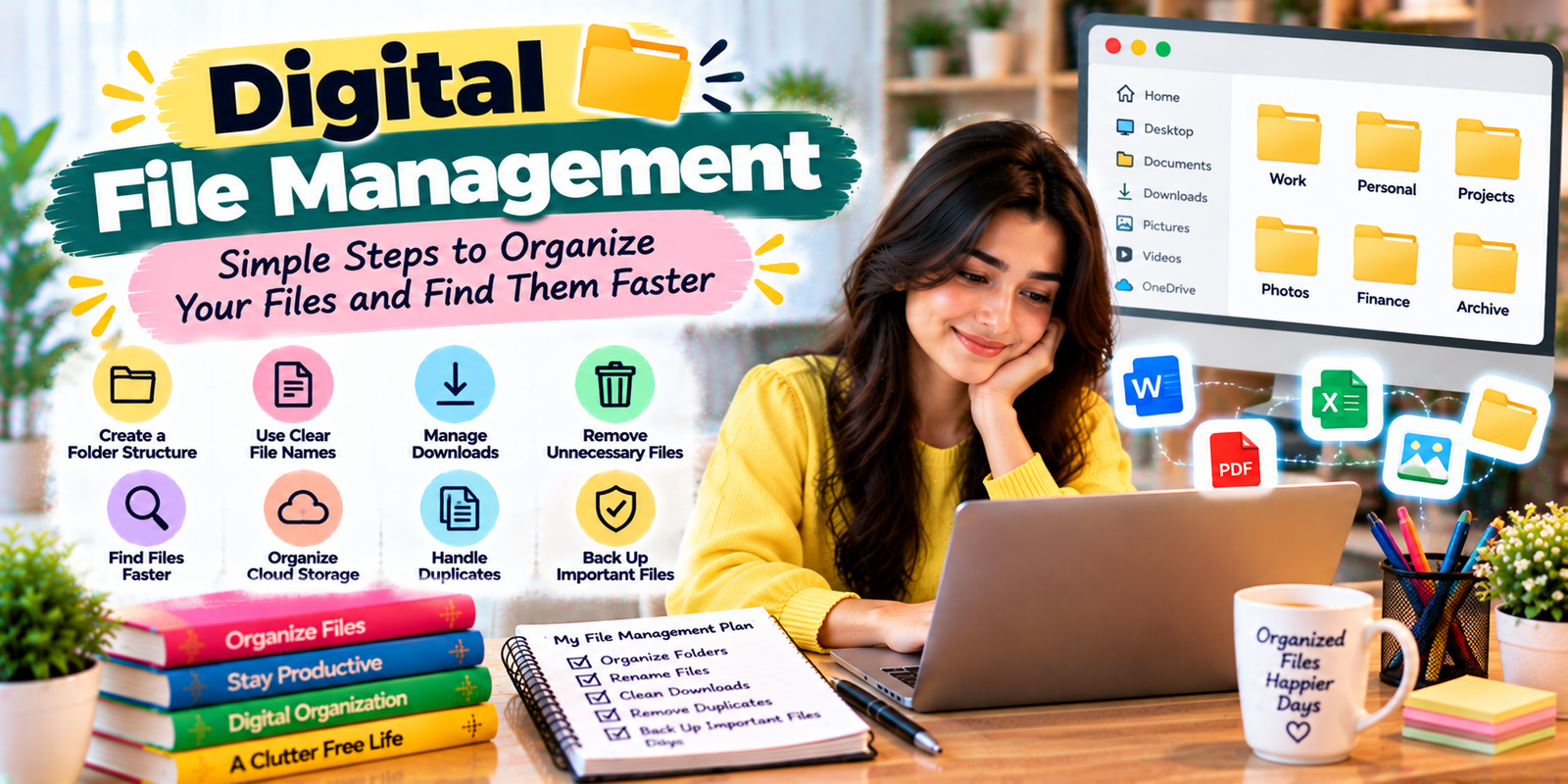
Start with a small number of main folders. For example, a personal computer might use:
- Documents
- Work
- Personal
- Finance
- Photos
- Projects
- Downloads
- Archive
Inside each main folder, create subfolders only when they are useful. A work folder could contain separate folders for clients or projects, while a finance folder could contain folders for bills, taxes, receipts, and bank documents.
Avoid creating too many levels of folders. If you need to open six or seven folders just to reach a document, your structure may be too complicated.
Organize by Project or Category
There are two common approaches to folder organization. You can organize files by project or by category.
Project-based organization works well when files are connected to specific jobs or assignments. For example:
- Projects
- Project A
- Project B
- Project C
Category-based organization works better when you regularly manage similar types of information, such as invoices, photographs, school notes, or personal documents.
The best Digital File Management system is the one that matches your daily workflow rather than copying someone else’s system.
Use Clear and Consistent File Names
A useful file name should tell you what the file contains without requiring you to open it. Clear naming is one of the simplest ways to improve Digital File Management.
Instead of names such as document1.docx or IMG_4837.jpg, use descriptive names such as:
- 2026-09-24_Monthly_Budget.xlsx
- Client_Project_Proposal.docx
- Family_Trip_Photos_2026.jpg
- Website_Content_Plan.docx
Dates can be particularly useful when files change over time. Using a consistent format such as YYYY-MM-DD also makes files easier to sort chronologically.
Create a Naming Convention
A naming convention is simply a set of rules for naming your files. For example, you might use:
Date + Project + Description + Version
A project document could then be named:
2026-09-24_Website_ContentPlan_v2.docx
You do not have to use this exact format. The important thing is consistency. Pick a naming style that makes sense to you and use it across similar files.
Keep Your Downloads Folder Organized
The Downloads folder often becomes one of the most cluttered locations on a computer. Files downloaded from websites, email attachments, installers, PDFs, images, and temporary documents can quickly accumulate.
Do not treat Downloads as permanent storage. Use it as a temporary holding area. This simple habit supports better Digital File Management because important files can be moved to their correct locations quickly.
Once you download a file, decide whether you need to:
- Move it to a permanent folder.
- Rename it.
- Open and review it.
- Archive it.
- Delete it.
A short weekly cleanup can prevent hundreds of unnecessary files from building up.
Separate Personal and Work Files
Keeping different types of information separate can make Digital File Management much easier. Mixing personal photos, work documents, downloads, invoices, and school files in one location makes searching more difficult.
Consider using separate main folders such as:
- Work: Projects, clients, reports, presentations, and business documents.
- Personal: Personal documents, travel information, and household records.
- Finance: Bills, receipts, statements, and tax-related documents.
- Photos: Family pictures, events, travel, and other images.
- Archive: Older files that you want to keep but rarely use.
This approach also makes backups and transfers easier because important groups of files have clearly defined locations.
Manage Photos and Videos Efficiently
Photos and videos can consume significant storage space, especially when they are copied from phones, cameras, messaging apps, and social platforms.
Create folders based on meaningful categories such as year, event, trip, or project. For example:
- Photos
- 2026
- 2026-01_Family_Event
- 2026-05_Travel
- 2026-08_Birthday
Try not to keep multiple copies of the same photo unless you have a specific reason. Before deleting duplicates, however, check that the files are genuinely identical and that you are not removing your only copy.
Find Files Faster With Search
Good Digital File Management is not only about creating folders. Modern operating systems also provide search tools that can help you locate files without manually opening every folder.
When searching, try using a unique part of the file name, a keyword from the document, or the file type. For example, searching for invoice, proposal, or 2026 budget may be faster than browsing through multiple folders.
On Windows, File Explorer can search files on your PC and, depending on your setup, cloud locations such as OneDrive. Microsoft provides options for changing views, showing file extensions, and pinning frequently used folders for easier access.
Use File Extensions Correctly
File extensions identify the type of file you are working with. Common examples include:
- .docx for Microsoft Word documents
- .xlsx for spreadsheets
- .pdf for PDF documents
- .jpg and .png for images
- .mp4 for video files
- .zip for compressed archives
Knowing file extensions can help you identify files correctly and avoid confusion when several documents have similar names.
Be careful when opening unfamiliar files, particularly files received from unknown sources. A file extension can provide useful information about the file type, but it should not be treated as proof that a file is safe.
Remove Unnecessary Files
Digital cleanup is an important part of Digital File Management. Over time, your computer may collect old downloads, temporary files, unused documents, duplicate images, outdated installers, and other files you no longer need.
Before deleting anything, ask:
- Do I still need this file?
- Is it available somewhere else?
- Is it an important record?
- Is it part of an active project?
- Do I have a backup?
If you are unsure, move the file to an archive folder rather than deleting it immediately. After a reasonable period, you can review the archive and remove files that are clearly unnecessary.
Handle Duplicate Files Carefully
Duplicate files are common when you download attachments multiple times, copy folders between devices, or create several versions of a project.
Look for obvious duplicates by comparing file names, locations, sizes, and dates. Do not delete files solely because their names look similar. Two files with similar names may contain different information.
For important documents, keep a clear versioning system instead of creating confusing copies. For example:
- Website_Plan_v1.docx
- Website_Plan_v2.docx
- Website_Plan_Final.docx
A consistent versioning method makes long-term Digital File Management easier, especially when a project contains many revisions.
Organize Cloud Storage
Cloud storage should follow the same basic organization principles as your computer. Services such as Google Drive allow users to create folders and subfolders, use meaningful names, star important items, and move files into appropriate locations.
A simple cloud structure might look like:
- My Documents
- Work
- Personal
- Projects
- Important Records
- Shared Files
- Archive
Try to avoid creating several unrelated cloud storage systems unless there is a clear reason. Knowing where your main files live makes Digital File Management easier and reduces confusion.
Back Up Important Files
Organization and backup are different tasks. A perfectly organized file can still be lost if your computer fails, is stolen, or becomes inaccessible.
Important documents, family photos, financial records, and active projects should have an appropriate backup strategy. Depending on your needs, backups may use an external drive, cloud storage, or another reliable backup system.
Regular backups are an essential part of responsible Digital File Management because organization alone cannot protect your data from hardware failure or accidental deletion.
Do not assume that synchronization is automatically the same as a backup. A synchronized file can sometimes reflect deletions or unwanted changes across devices. For important information, consider whether you need a separate backup copy that can be recovered independently.
Protect Sensitive Files
Some files deserve additional protection. These may include financial documents, identity records, private business information, personal photographs, and confidential work files.
Use appropriate device security, account protection, and encryption features where available. Avoid leaving sensitive documents in publicly shared folders or sending confidential files through insecure channels.
Reviewing access permissions should also be part of your Digital File Management routine. A document does not need to be publicly accessible simply because it is stored online.
Create an Archive Folder
An archive gives you a place to store files that you want to keep but do not need every day.
For example, an archive could contain:
- Completed projects
- Older tax documents
- Previous versions of important work
- Past invoices
- Old photographs
- Completed school assignments
Archiving keeps active folders cleaner without forcing you to delete information that may still be useful later.
Use Shortcuts for Frequently Used Folders
You do not need to keep every frequently used folder at the top level of your storage system. Instead, use shortcuts or pinned locations when your operating system or cloud service supports them.
This gives you quick access without duplicating the actual files. For example, a project folder can remain inside your main Projects directory while a shortcut makes it easier to reach from your desktop or file manager.
Common File Management Mistakes
Even a simple organization system can become difficult to maintain if you fall into a few common habits. Avoiding these problems can make your Digital File Management system more reliable.
Keeping Everything on the Desktop
The desktop should not become your main storage location. A crowded desktop makes important files harder to find and can make your workspace feel disorganized.
Using Vague File Names
Names such as newfile, document, or stuff provide little useful information. Descriptive names are much easier to search and understand later.
Creating Too Many Folders
Over-organizing can be just as frustrating as having no organization. Keep your folder structure simple enough that you can remember it without constantly checking where things belong.
Deleting Without Checking
Never assume that a file is unnecessary simply because you have not opened it recently. Important records may be needed months or years later. Review before deleting.
Ignoring Backups
Organization does not protect against hardware failure, accidental deletion, malware, or theft. Important information needs an appropriate backup strategy as well.
How to Organize Files on a New Computer
If you are setting up a new computer, start with a clean system instead of transferring years of digital clutter without reviewing it.
- Create your main folders.
- Move important documents into the appropriate locations.
- Review old files before copying them.
- Delete unnecessary duplicates and temporary files.
- Create a consistent naming system.
- Set up your backup method.
- Organize cloud storage to match your main structure.
- Keep Downloads as a temporary location.
This approach gives you a clean starting point and makes ongoing Digital File Management much easier.
File Management for Work
Work files often require more structure because several people may access, edit, or share the same documents.
A project folder could use a structure such as:
- 01_Project Information
- 02_Research
- 03_Working Files
- 04_Reviews
- 05_Final Files
- 06_Archive
Numbered folders can keep important sections in a predictable order. They are particularly useful when multiple people need to understand the structure.
For shared projects, also agree on naming conventions and version rules. A consistent team system is easier to maintain than having every person organize files differently.
File Management for Students
Students can benefit from organizing files by school year, subject, course, or assignment. This makes Digital File Management easier when many documents are created during the academic year.
For example:
- School
- 2026
- English
- Math
- Science
- Projects
- Assignments
Include useful details in assignment names, such as the subject, assignment name, and date. This makes it easier to find older work when preparing for exams or reviewing previous projects.
How Often Should You Organize Your Files?
You do not need to reorganize your entire computer every day. A small maintenance routine is usually easier to maintain.
Consider this schedule:
- Daily: Move important files out of Downloads when necessary.
- Weekly: Clean temporary downloads and organize new documents.
- Monthly: Review large folders, duplicates, and unused files.
- Every few months: Review archives and confirm that important backups are working.
A regular maintenance routine keeps Digital File Management from becoming a large, stressful cleanup project.
Expert Tips for Better File Organization
- Start simple: A small structure is easier to maintain than a complicated one.
- Use meaningful names: Make filenames understandable without opening the file.
- Separate active and archived work: This keeps current projects easier to navigate.
- Use dates consistently: A standard date format helps with sorting.
- Keep temporary files temporary: Do not allow Downloads to become permanent storage.
- Review before deleting: Especially when working with important documents.
- Back up valuable information: Organization cannot replace a backup.
- Use search and shortcuts: They can reduce the need for deep folder structures.
Frequently Asked Questions
What is Digital File Management?
Digital File Management is the organized process of naming, storing, finding, moving, backing up, and deleting digital files so they remain easy to access and maintain.
What is the easiest way to organize files and folders?
The easiest approach is to create a small number of main folders based on your work, personal life, projects, or file types. Use clear names and add subfolders only when they make files easier to find.
How should I name my files?
Use short but descriptive names that explain the content. Adding a date, project name, document type, or version number can make files easier to identify and sort.
Should I organize files by date or by category?
It depends on how you use your files. Date-based organization works well for records and recurring documents, while category or project-based organization is often better for ongoing work.
Is cloud storage enough to protect important files?
Cloud storage can be useful, but synchronization and backup are not always the same thing. For critical information, use a backup approach that gives you a reliable way to recover files after accidental deletion, device failure, or other problems.
How often should I clean my files?
A quick weekly cleanup can work well for many people. Perform a deeper review monthly or every few months, depending on how quickly your files accumulate.
Conclusion
Effective Digital File Management is less about creating a perfect system and more about creating a system you can consistently maintain. Start with simple folders, use descriptive names, keep temporary files under control, separate active work from archives, and use search and shortcuts to access important information quickly.
Most importantly, remember that organization and protection are different. Keep important files backed up and protect sensitive information appropriately. Once these habits become part of your normal routine, managing documents, photos, projects, and other digital files becomes much easier.