
A good digital backup plan is not simply about copying files once and forgetting about them. It should identify which information matters most, where backups will be stored, how frequently they will run, how they will be protected, and how you will test whether the files can actually be recovered. CISA recommends the 3-2-1 backup approach: keep three copies of important files, use two different storage types, and keep one copy offsite. CISA backup guidance provides additional information about this approach.
This guide explains how to create a practical backup system for personal files, work documents, photos, financial records, business information, and other important digital assets.
What Is a Digital Backup Plan?
A digital backup plan is a documented method for creating, storing, protecting, and restoring copies of important digital information. It defines what should be backed up, how often backups should happen, where copies should be stored, and what steps should be followed after data loss.
The goal is simple: if your primary device or storage location becomes unavailable, you should have another reliable copy of your information.
A backup plan can be very simple for a home user. It might include automatic cloud backups plus an external hard drive. A small business may need several layers, including local backups, cloud storage, encrypted copies, access controls, and regular recovery testing.
Why You Need a Digital Backup Plan
Important information often exists in more places than people realize. Your laptop may contain work documents, your phone may contain years of photographs, and an online account may contain important records. If one device fails, the consequences can be much larger than losing a few files.
A digital backup plan reduces dependence on a single copy of your information. It can help you recover after:
- Accidental file deletion
- Hard-drive or SSD failure
- Lost or stolen devices
- Malware or ransomware incidents
- Fire, flooding, or other physical damage
- Software problems
- File corruption
- Human error
- Unexpected account or device problems
NIST guidance emphasizes regular backups, recovery planning, appropriate backup frequency, offsite storage, and testing. The exact strategy should depend on how important the information is and how quickly it needs to be restored. NIST contingency planning guidance provides a useful framework for thinking about recovery.
Step 1: Identify Your Most Important Data
The first step in building a digital backup plan is identifying what you cannot afford to lose. Not every file needs the same level of protection.
Start by making categories of information. For example, you might have:
- Personal photographs and videos
- Family documents
- Tax and financial records
- Identification and legal documents
- Work documents
- Business records
- Customer or client information
- Creative projects
- Website files
- Passwords and account recovery information
- School or university work
- Important email archives
Once you have the list, separate essential information from files that can easily be replaced. This helps you decide where to spend time and storage resources.
Create a Critical Data List
A simple spreadsheet or document can contain the name of each important data category, its current location, backup location, backup frequency, and recovery priority.
For example:
| Data Type | Primary Location | Backup | Priority |
|---|---|---|---|
| Family photos | Phone and computer | Cloud and external drive | High |
| Work documents | Laptop | Cloud and external drive | High |
| Old downloads | Computer | Optional | Low |
| Business records | Office computer | Cloud and offline copy | Critical |
Step 2: Follow the 3-2-1 Backup Strategy
A strong digital backup plan can be built around the 3-2-1 principle. CISA describes it as keeping three copies of important files, using two different media types, and storing one copy offsite. CISA’s Data Backup Options guidance explains the method in more detail.
In practical terms:
- Keep three copies: Maintain the original plus two backup copies.
- Use two storage types: Do not depend entirely on one kind of storage.
- Keep one copy offsite: Store at least one backup somewhere separate from the primary location.
For a home user, this could mean keeping files on a laptop, an external drive, and a reputable cloud storage service. The exact arrangement can vary according to the type and importance of the information.
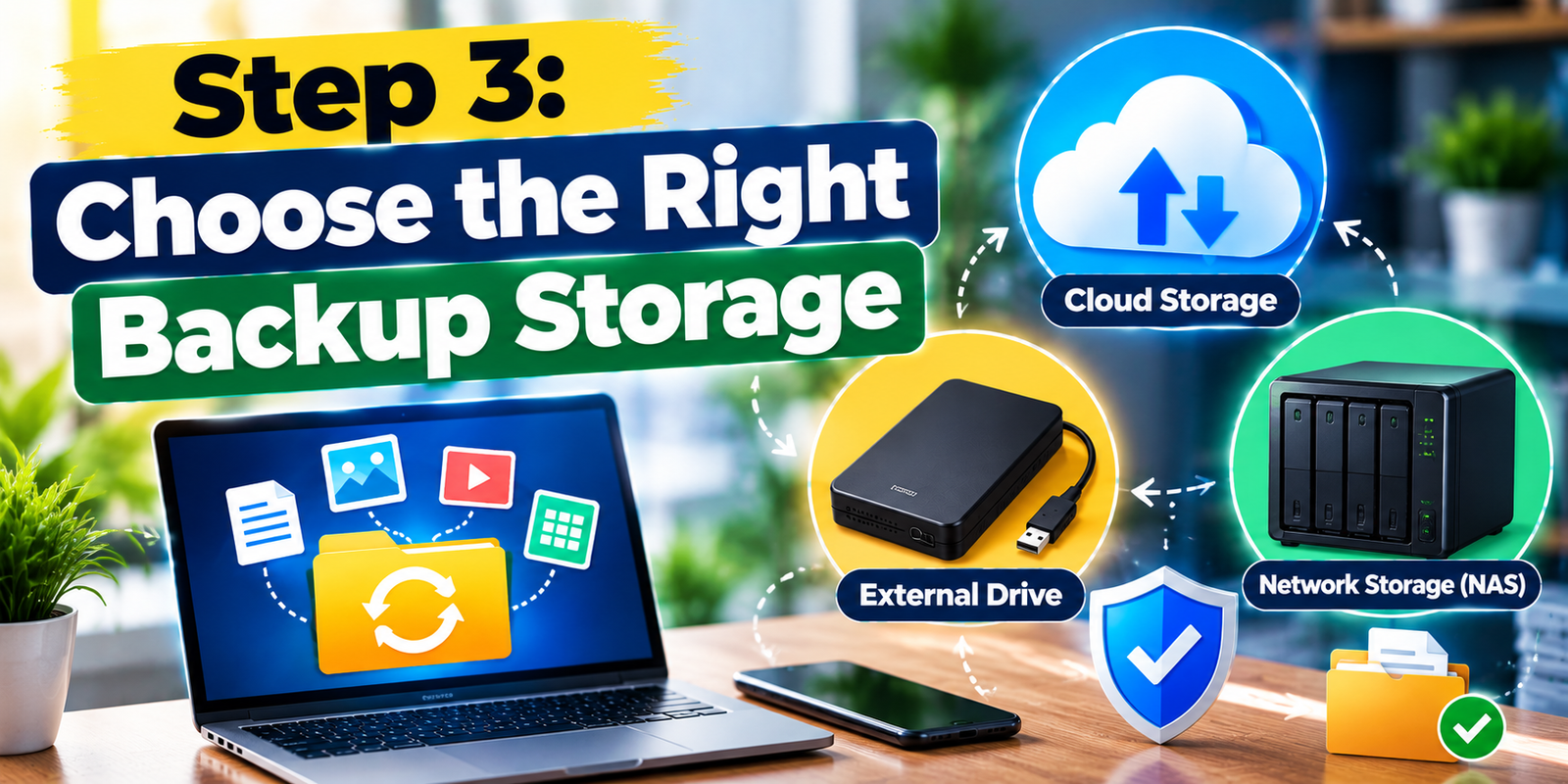
Step 3: Choose the Right Backup Storage
Your digital backup plan should use storage options that match your needs. There is no single storage method that is perfect for everyone.
External Hard Drives
External hard drives are useful for storing large amounts of information locally. They can be relatively convenient for photographs, videos, documents, and computer backups.
Their main limitation is physical dependence. If the drive stays next to your computer and both are damaged or stolen at the same time, the backup may be lost as well.
Solid-State Drives
External SSDs can provide fast storage and are useful when portability and speed matter. Like other local storage devices, however, they should not be treated as the only backup location for critical information.
Cloud Storage
Cloud storage can provide an offsite copy and may support automatic synchronization or backup features. This can be convenient for people who want backups to happen without manually connecting a storage device.
Cloud services also require account security. Use strong passwords and enable multi-factor authentication where available. Understand how the provider handles deleted files, version history, account recovery, and storage limits.
Network-Attached Storage
A NAS device can provide centralized storage for multiple computers and devices. It may be useful for families, professionals, or small organizations that need a shared local backup environment.
A NAS should not automatically be considered a complete backup by itself. If the NAS is affected by theft, fire, malware, or another major incident, data stored only on that device may also become unavailable.
Step 4: Decide How Often to Back Up
Backup frequency should depend on how frequently your information changes and how much recent work you could afford to lose.
For example, someone who takes hundreds of photographs every week may want automatic or frequent backups. Someone who rarely changes a collection of old documents may not need the same schedule.
NIST guidance recommends establishing backup frequency based on data criticality and how frequently new information is introduced. NIST SP 800-34 Rev. 1 discusses backup frequency, backup scope, offsite storage, and recovery considerations.
Common schedules include:
- Continuous: Useful for frequently changing critical information.
- Daily: Suitable for many active work files.
- Weekly: Reasonable for information that changes less often.
- Monthly: Useful for certain archives, but generally not enough for frequently changing critical files.
Step 5: Automate Your Backups
One of the most useful improvements you can make to a digital backup plan is automation. Manual backups are easy to forget, especially when you are busy.
Automatic backup software can copy selected folders on a schedule. Depending on the operating system or service, you may be able to configure file history, system backups, cloud synchronization, or scheduled external-drive backups.
Automation does not eliminate the need for monitoring. A backup process can fail because of a disconnected drive, insufficient storage, expired subscription, network problems, permissions, or software errors.
Check your backup status periodically rather than assuming everything is working.
Step 6: Keep Backups Separate From Your Main Device
A common mistake is keeping the original file and backup on the same physical device. If the device fails, both copies may disappear.
A stronger digital backup plan separates important copies across different storage locations. For example, a computer can have a local external-drive backup while another copy is stored securely in the cloud.
Physical separation is particularly important for disasters that affect an entire location. If your computer and backup drive are both in the same room, a fire, flood, or theft could affect both.
Step 7: Protect Backups From Unauthorized Access
A backup is valuable only if it can be accessed safely. Your digital backup plan should therefore include security measures.
Consider these practices:
- Use strong and unique passwords.
- Enable multi-factor authentication for cloud accounts.
- Keep backup software and operating systems updated.
- Use encryption when appropriate.
- Limit access to sensitive backup files.
- Protect physical backup drives from unauthorized access.
- Keep recovery credentials in a secure location.
NIST guidance notes that encryption can help protect stored data and backup media, while secure key management is important when encrypted backups need to be recovered. NIST SP 800-34 Rev. 1 discusses these security and recovery considerations.
Step 8: Protect Against Ransomware and Malware
Malware can make ordinary backups less useful if an attacker gains access to both your computer and connected backup storage.
A safer digital backup plan should include copies that are not continuously exposed to the same system. Depending on your circumstances, this might involve an offline backup, protected cloud backup, or other separation between the main system and backup environment.
Keep security software updated, avoid suspicious downloads, use account protections, and install operating-system security updates promptly.
Remember that synchronization is not always the same as backup. If a malicious or accidental change synchronizes across connected devices, you may need version history, deleted-file recovery, or an independent backup to restore an earlier version.
Step 9: Use Version History When Possible
Sometimes data is not completely destroyed. Instead, a file is accidentally overwritten, edited incorrectly, or deleted.
Version history can help recover an earlier version of a document. This is particularly useful for work files, spreadsheets, presentations, and other documents that change frequently.
When choosing a backup or cloud service, check whether it provides file versioning and how long previous versions remain available.
Step 10: Test Your Backups
Creating backups is only part of a complete digital backup plan. You also need to know whether the backups can actually be restored.
A backup can appear successful while containing incomplete, corrupted, inaccessible, or outdated files. Testing helps identify these problems before an emergency.
NIST guidance emphasizes testing backup and recovery processes. Its recommendations include regularly testing stored backups to verify that data can be retrieved without errors. NIST recovery guidance provides additional detail.
A Simple Backup Test
- Select several important files.
- Confirm they exist in your backup location.
- Restore copies to a separate folder or test device.
- Open the restored files.
- Check that important information is intact.
- Record any problems and correct the backup process.
For a business, recovery testing should be more formal and should cover critical systems and processes.
Step 11: Create a Recovery Plan
A digital backup plan should explain what you will do when something goes wrong. Do not wait for data loss to decide how recovery will work.
Your recovery plan can answer questions such as:
- Which files need to be restored first?
- Where is the newest reliable backup?
- Who has access to the backup account?
- How will you recover if the main computer is unavailable?
- Where are recovery credentials stored?
- How will you restore applications and settings?
- How will you confirm that recovered files are complete?
NIST describes contingency planning as a coordinated approach for recovering information systems, operations, and data after disruption. NIST contingency planning resources provide a broader recovery framework.
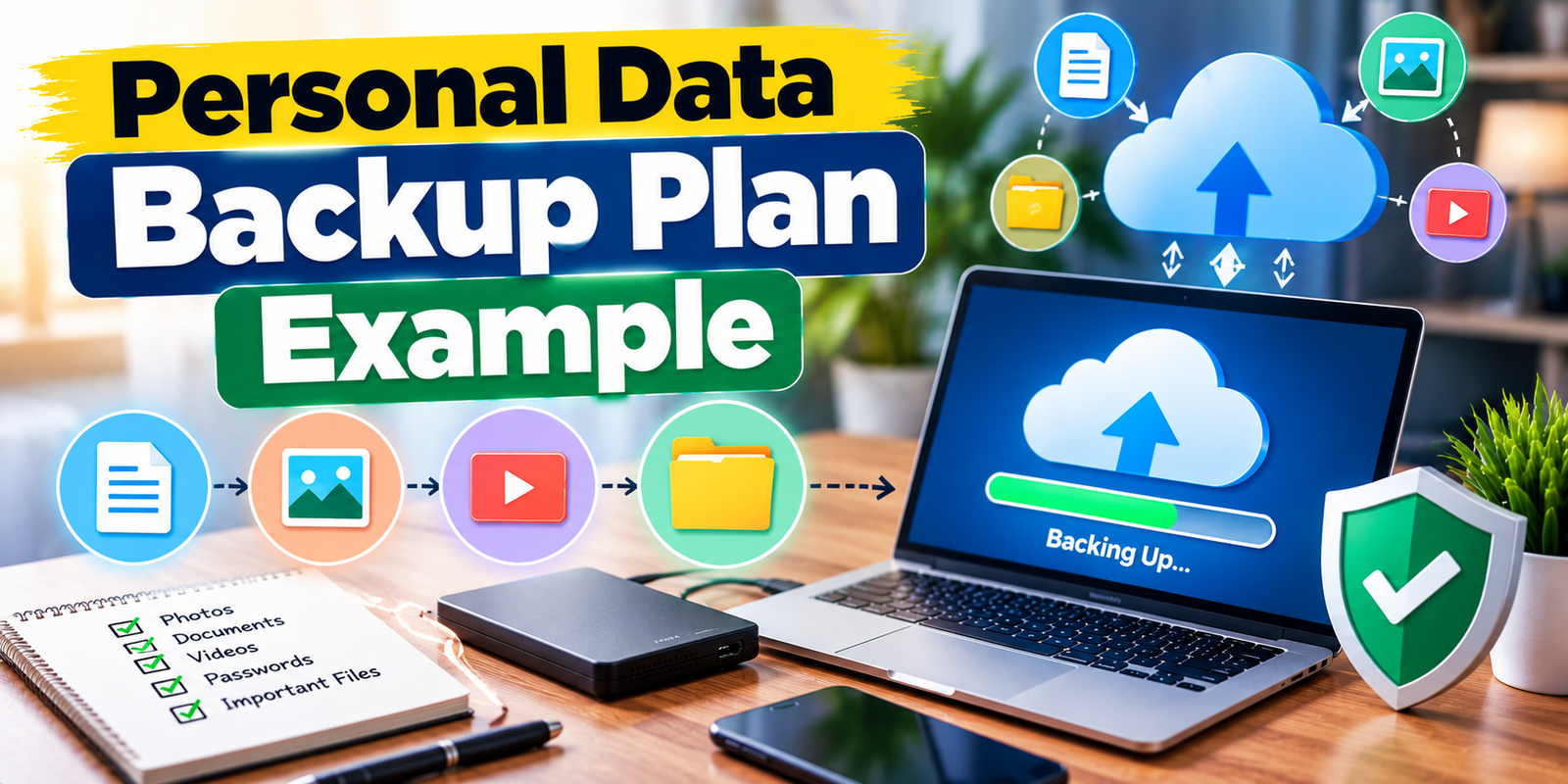
Personal Data Backup Plan Example
Imagine you have a laptop containing family photographs, personal documents, and financial records.
A practical digital backup plan could include the original files on the laptop, an automatic cloud backup, and a separate external drive that is periodically disconnected and stored safely.
The cloud copy provides offsite protection, while the external drive provides another recovery option. The important point is not the exact products used but the separation and redundancy of the copies.
Small Business Backup Plan Example
A small business may need stronger protection because data loss can interrupt operations and affect customers.
Business-critical information could include accounting records, customer files, contracts, website data, inventory information, employee documents, project files, and business email.
A business digital backup plan can combine automated cloud backups, local backups, access controls, encryption, offsite storage, documented recovery procedures, and scheduled recovery tests.
The business should also identify who is responsible for backup monitoring and who has authority to restore critical systems.
How to Back Up Smartphones
Phones often contain valuable photographs, contacts, messages, documents, and application information. A backup strategy should cover mobile devices as well as computers.
Check your phone’s built-in backup features and determine which information is included. Some services back up photographs, contacts, settings, and other information automatically, but coverage varies.
Do not assume that every application stores its data in the same way. For important information, check whether the app provides its own export or backup function.
How to Back Up Photos and Videos
Photos and videos can become some of the most difficult files to replace because they may represent years of memories.
Consider keeping at least two independent copies. One can be an automatic cloud copy, while another can be stored on an external drive. Organize files into clear folders and periodically verify that new photographs are actually being backed up.
For very important family archives, an additional offline or offsite copy can provide another layer of protection.
How to Back Up Work Documents
Work files often change frequently, so automatic backups can be especially useful. Store important documents in an approved business cloud or backup system when working for an organization.
If you are self-employed, consider backing up contracts, invoices, project files, accounting information, website assets, and other business records.
Keep client or employer information secure and follow any applicable data-handling requirements. A backup should not create a new privacy or security problem.
Cloud Backup vs External Drive
| Feature | Cloud Backup | External Drive |
|---|---|---|
| Offsite protection | Usually available | Only if stored separately |
| Automation | Often available | May require software or manual setup |
| Internet required | Usually for backup and recovery | No |
| Large local archive | Depends on service | Useful |
| Physical damage risk | Lower at your location | Depends on storage location |
For important information, these options do not necessarily need to compete with each other. Using both can create stronger redundancy when configured properly.
Common Digital Backup Mistakes
Keeping Only One Backup
One backup can fail, become corrupted, or become unavailable. Multiple copies provide greater resilience.
Keeping the Backup Beside the Computer
A nearby drive is convenient, but it may be affected by the same physical incident as the computer. Consider maintaining an offsite copy for important information.digital backup plandigital backup plandigital backup plandigital backup plandigital backup plandigital backup plandigital backup plandigital backup plandigital backup plandigital backup plan
Never Testing Recovery
A backup that cannot be restored when needed is not a dependable recovery solution. Schedule occasional restoration tests.
Ignoring Mobile Devices
Important data is no longer limited to desktop computers. Include smartphones and tablets in your backup review.
Confusing Sync With Backup
Synchronization keeps information consistent across locations, but it may not provide the same recovery capabilities as a dedicated backup system. Understand how deletion, corruption, and previous versions are handled.
Forgetting Account Recovery
If your backup depends on an online account, make sure you can recover that account. Protect recovery email addresses, authentication methods, and other credentials.digital backup plandigital backup plandigital backup plan
How to Maintain Your Backup System
A digital backup plan should be reviewed regularly because your data, devices, and storage needs change.
Set a recurring reminder to check:
- Whether backups are completing successfully
- Whether storage capacity is sufficient
- Whether important folders are included
- Whether cloud accounts remain active
- Whether backup software needs updates
- Whether recovery credentials are accessible
- Whether backup files can be restored
- Whether old devices or storage media should be replaced
Businesses should document these checks and assign responsibility to specific people or teams.
What Should a Backup Checklist Include?
Use this checklist when creating your own digital backup plan:
- List your critical data.
- Identify where each type of data is currently stored.
- Choose a primary backup method.
- Add a second independent backup.
- Keep at least one copy offsite for important data.
- Automate backups where practical.
- Protect backup accounts with strong security.
- Encrypt sensitive backups when appropriate.
- Test file restoration.
- Document your recovery steps.
- Review the system regularly.
Frequently Asked Questions
What is the best digital backup plan for personal files?
A practical approach is to keep multiple copies of important files, use more than one storage type, and maintain an offsite copy. The 3-2-1 strategy is a useful starting point, although your exact setup should reflect the importance and sensitivity of your data.
How often should I back up important data?
The right frequency depends on how often your files change and how much recent work you can afford to lose. Frequently changing critical data may require automatic or daily backups, while less active archives may need less frequent backups.digital backup plan
Is cloud storage enough for a digital backup plan?
Cloud storage can be an important part of a backup strategy, but you should understand whether the service provides true backup, synchronization, version history, and recovery features. For highly important information, maintaining another independent copy can provide additional protection.
What is the 3-2-1 backup rule?
The 3-2-1 backup rule means keeping three copies of important data, using two different storage types, and keeping one copy in a separate location. CISA recommends this approach as a way to improve the chances of recovering important information after loss or corruption.
Why should I test my backups?
Testing confirms that files can actually be recovered. A backup may appear successful while containing damaged, incomplete, outdated, or inaccessible data. Regular restoration tests help identify problems before an emergency occurs.
Should backups be encrypted?
Encryption can provide additional protection for sensitive information, particularly when backup data is stored offsite or in cloud environments. If encryption is used, protect the recovery keys or credentials carefully so the data can still be restored when needed.
Conclusion
A reliable digital backup plan is one of the simplest ways to reduce the impact of data loss. Start by identifying the information that matters most, then create multiple copies using different storage locations. For many users, the 3-2-1 approach provides a useful foundation.
Do not stop after creating the first backup. Automate the process when possible, protect your accounts, keep an offsite copy, and test restoration regularly. NIST guidance also emphasizes that backup strategies should be based on the importance of the data, recovery requirements, security needs, and regular testing. NIST’s 2026 OT Backup Quick Start Guide reinforces the importance of creating backups regularly, testing them, and reviewing recovery procedures.
The most effective backup system is one that you understand, maintain, and can actually use during an emergency. A few hours spent organizing your files and setting up reliable backups today can make future recovery much easier.