
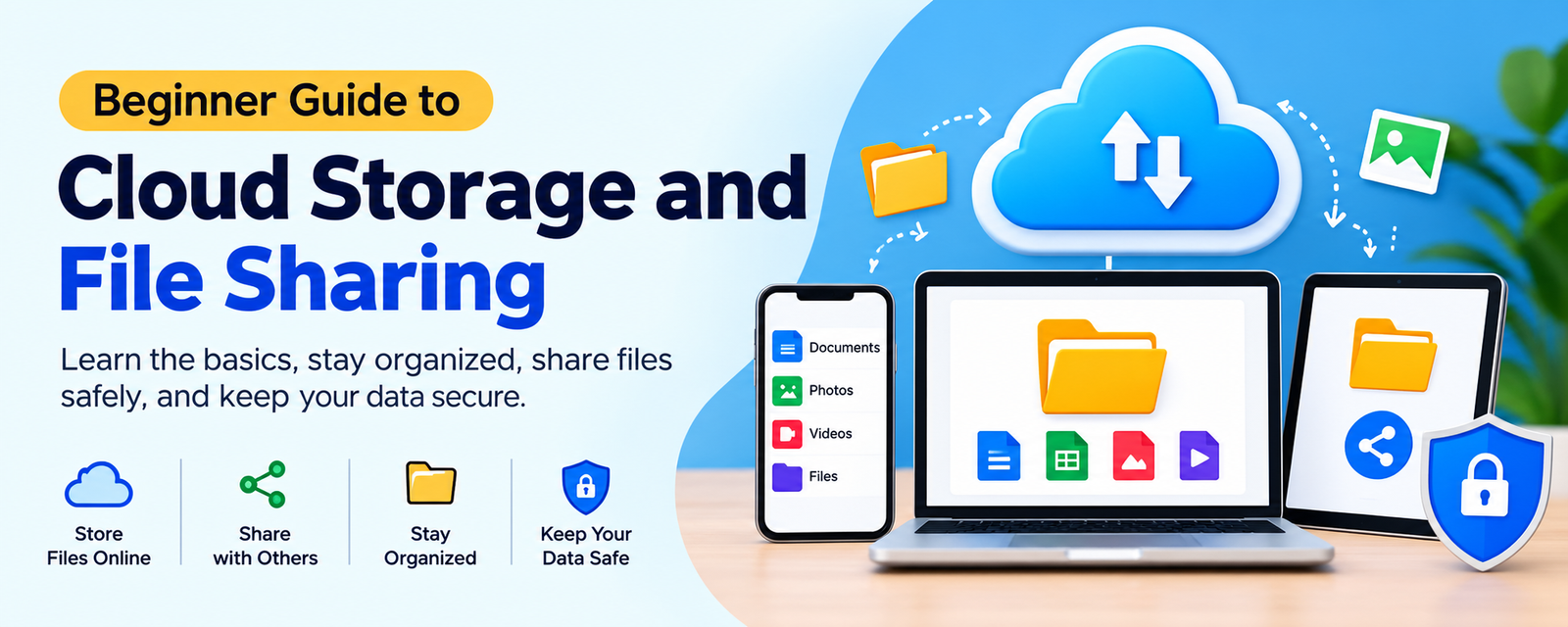
Learning Cloud Storage Basics can make it much easier to save, organize, access, and share digital files. Instead of keeping every document, photo, or project file on one computer, cloud services let you store files online and reach them from supported devices. This guide explains Cloud Storage Basics in simple terms so beginners can understand how cloud storage and file sharing work.
What Is Cloud Storage?
Cloud Storage Basics starts with understanding what cloud storage means. Cloud storage is a service that keeps your files on remote servers managed by a provider. You can usually access those files through a website, desktop application, or mobile app.
For example, services such as Google Drive, OneDrive, and Dropbox allow users to upload documents, images, videos, and other files. The main idea behind Cloud Storage Basics is simple: your files are stored online rather than only on the device you are using.
How Cloud Storage Works
When you upload a file, the cloud service transfers a copy of that file to its remote storage system. Depending on the service and settings, the file may then be synchronized across your devices. These simple steps are an important part of Cloud Storage Basics.
- Choose a cloud storage service.
- Create or sign in to your account.
- Upload files or folders.
- Organize your files into useful folders.
- Access or share the files when needed.
Understanding this process makes Cloud Storage Basics easier to apply in everyday work, study, and personal file management.
Cloud Storage vs Local Storage
Local storage keeps files directly on devices such as computers, phones, USB drives, or external hard drives. Cloud storage keeps files on remote systems that you access through the internet. One practical part of Cloud Storage Basics is knowing that the two approaches can work together.
Local storage can be useful when you need offline access, while cloud storage can make access and collaboration easier. A sensible setup may use both, depending on your needs.
What Is File Sharing?
File sharing means giving another person access to a file or folder. This can be done through a sharing link or by inviting specific people. Good Cloud Storage Basics includes learning how sharing permissions work before you send a file.
For example, File Sharing in OneDrive can be configured with different access options. Google Drive also lets owners choose whether someone can view, comment, or edit a file. These controls are central to Cloud Storage Basics.
Common File Sharing Permissions
Different cloud services use slightly different names, but common permissions include:
- Viewer: Can open or view the file.
- Commenter: Can view and add comments where supported.
- Editor: Can make changes to the file.
Google Drive documents these file permissions and sharing roles. Knowing who should have access is one of the most useful Cloud Storage Basics skills for beginners.
Benefits of Cloud Storage
There are several practical reasons people use cloud storage. Cloud Storage Basics becomes more useful when you understand how these benefits fit into your daily workflow.
- Access: Files can be available from multiple supported devices.
- Convenience: You can avoid moving files manually between devices.
- Collaboration: Shared files can make teamwork easier.
- Organization: Folders and search features can help you manage large collections.
- Sharing: You can send files or folders without attaching large files to every message.
Services differ in features, storage limits, pricing, and sharing controls, so check the provider’s current terms before choosing a service.
Cloud Storage Is Not the Same as Backup
A common beginner mistake is assuming that storing a file in the cloud automatically creates a complete backup. Cloud Storage Basics should include this distinction. Synchronization may update or delete files across connected devices, depending on the service and settings.
For important information, consider maintaining separate backups. CISA recommends backing up important data to a secure external drive or a properly vetted cloud service. Its guidance on Data Backup explains why backups help reduce the risk of permanent data loss.
Keeping independent copies is an important part of Cloud Storage Basics, especially for business documents, family photos, school projects, and other files that would be difficult to replace.
How to Choose a Cloud Storage Service
When applying Cloud Storage Basics, do not choose a service based only on the amount of storage it advertises. Consider the features that matter to you.
- Available storage space
- Supported devices and operating systems
- File sharing and permission controls
- Synchronization options
- Version history or file recovery features
- Security and acnt protectioncou features
- Ease of use
- Price and subscription limits
For example, Online Storage services may offer different sharing and collaboration features. Compare the provider’s current features before making a decision. This practical comparison is part of Cloud Storage Basics.
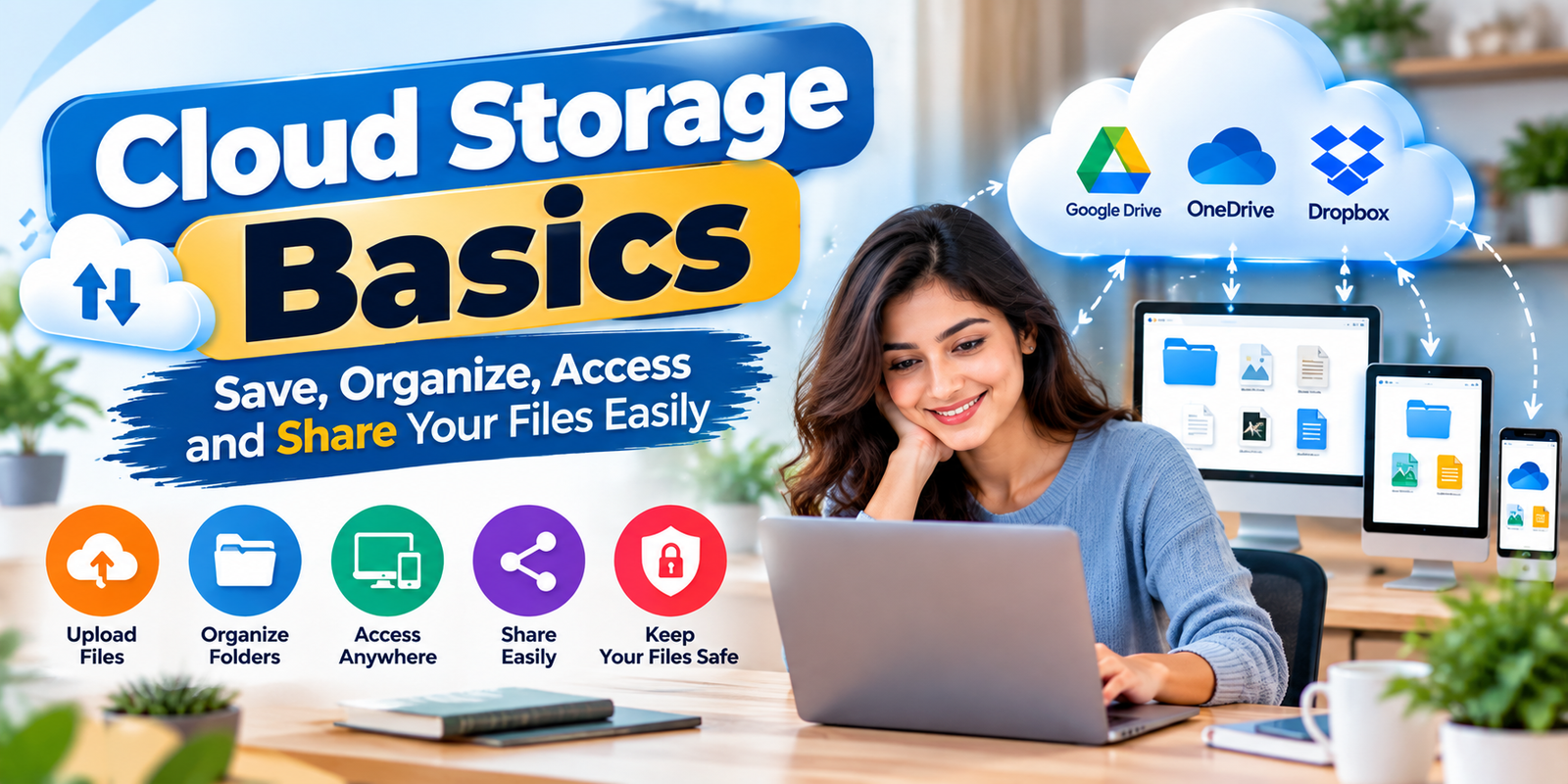
How to Organize Cloud Files
Good organization can make Cloud Storage Basics much easier to use. Start with a small number of clear top-level folders instead of creating dozens of folders immediately.
- Work
- Personal
- School
- Projects
- Photos
- Archive
Use consistent file names and avoid vague names such as “new file” or “document final.” A useful name can include the project, topic, and date when appropriate.
As part of Cloud Storage Basics, review old files regularly. Move completed projects into an archive folder and remove unnecessary duplicates when you are sure they are no longer needed.
How to Share Files Safely
Safe sharing is an essential part of Cloud Storage Basics. Before sending a link, check who can access it and what they are allowed to do.
- Use specific-person sharing when a file is private.
- Give editing access only when it is necessary.
- Review shared links regularly.
- Remove access when collaboration ends.
- Avoid placing sensitive information in broadly accessible links.
Microsoft explains that OneDrive can provide sharing links for specific people and can also offer controls such as editing permissions and, for eligible accounts, expiration or password settings. These options are useful examples of Cloud Storage Basics in practice.
Cloud Storage Security Tips
Security should be considered alongside convenience. Strong Cloud Storage Basics includes protecting the account that controls access to your files.
- Use a strong, unique password.
- Turn on multifactor authentication when available.
- Keep your devices and apps updated.
- Review account and sharing activity.
- Be careful with unexpected sharing requests and links.
- Keep separate backups of important information.
For additional guidance, review the provider’s security documentation and general cybersecurity guidance. Good security habits are a core part of Cloud Storage Basics.
Common Cloud Storage Mistakes
Beginners often make simple mistakes when first using cloud storage. Learning these issues early can make Cloud Storage Basics much easier to apply.
- Sharing files with everyone instead of specific people.
- Giving edit permission when view access is enough.
- Using unclear folder and file names.
- Assuming synchronization is the same as backup.
- Keeping old public links active unnecessarily.
- Ignoring account security settings.
Regularly reviewing your files and permissions can prevent many of these problems.
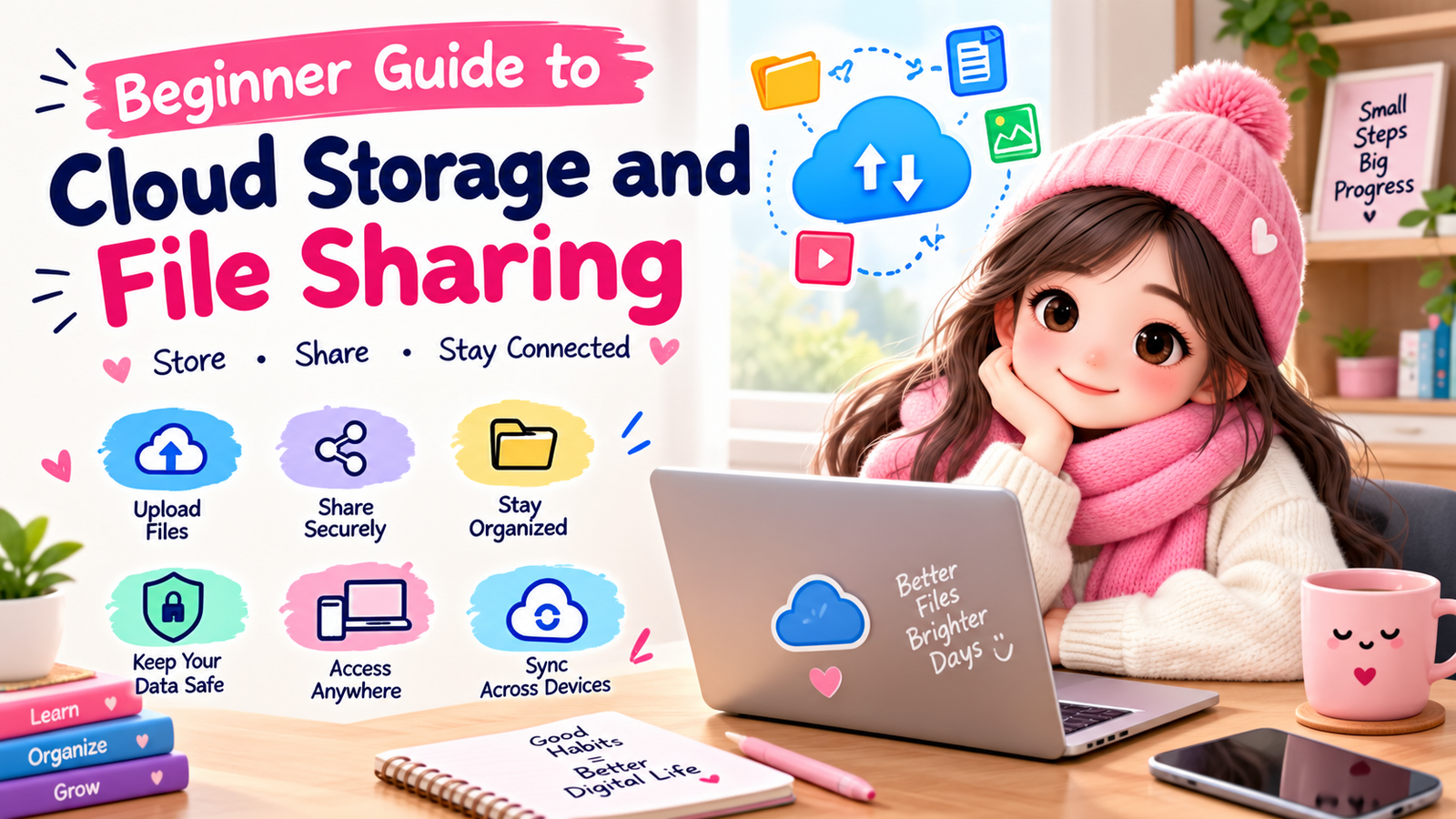
Simple Cloud Storage Workflow
A simple workflow can put Cloud Storage Basics into practice without making file management complicated.
- Upload: Add new files to the correct folder.
- Organize: Use clear names and folders.
- Review: Check important files and sharing permissions.
- Share: Give the minimum access needed.
- Back up: Keep independent copies of critical data.
- Archive: Move completed work out of active folders.
This routine helps turn Cloud Storage Basics into a repeatable habit rather than a one-time setup.
Frequently Asked Questions
Is cloud storage safe for beginners?
Cloud storage can be useful when you use strong account security, appropriate sharing permissions, and sensible backup practices. The exact protections depend on the service and your settings.
Is cloud storage the same as a backup?
No. A synchronized cloud folder and a separate backup serve different purposes. Important files may benefit from independent backup copies.
Can I share a cloud file with someone?
Yes. Most major cloud services provide sharing options. You can often choose between specific people, a link, or different permission levels.
What permission should I give someone?
Give the lowest level that allows the person to complete the task. If someone only needs to read a document, view access may be enough. If they need to make changes, edit access may be appropriate.
How can I keep cloud files organized?
Use simple folders, consistent names, regular reviews, and an archive for completed projects. Avoid creating unnecessary duplicates.
Conclusion
Learning Cloud Storage Basics does not need to be complicated. Start by understanding how cloud storage works, organize your files clearly, learn sharing permissions, and protect your account with good security practices.
The most important lesson is to balance convenience with control. Cloud storage can make files easier to access and share, but you should still review permissions, protect your account, and maintain backups of important information.