
Improving your computer’s performance does not always require buying a completely new system. The right Computer Hardware Upgrades can help your PC handle demanding applications, large datasets, video editing, gaming, software development, and other intensive workloads more efficiently. Choosing the best Computer Hardware Upgrades depends on your current components, budget, and the tasks you want to perform.
Some upgrades deliver noticeable improvements, while others offer limited benefits if another component is slowing the system down. For example, adding RAM can help when memory is insufficient, while a faster SSD can improve loading times. A stronger graphics card may be more useful for GPU-intensive applications, and a better CPU can benefit processor-heavy workloads.
This guide explains the most valuable Computer Hardware Upgrades, how to choose compatible components, and which improvements make sense for different computing needs.
What Is High-Performance Computing?
High-performance computing (HPC) refers to using powerful computing resources to process complex tasks, large amounts of data, or demanding calculations efficiently. Professional HPC systems often use clusters of computers, specialized processors, and high-speed networking. However, individual desktop computers can also benefit from Computer Hardware Upgrades to handle more demanding workloads.
Examples include:
- Scientific calculations and engineering simulations.
- Artificial intelligence and machine learning experiments.
- Video editing, animation, and 3D rendering.
- Large software development projects and virtual machines.
- Data analysis, visualization, and technical applications.
- High-resolution gaming and content creation.
The most suitable upgrade depends on the workload. A video editor may benefit from a powerful GPU and fast storage, while someone running several virtual machines may need additional memory and more CPU cores.
Best Computer Hardware Upgrades for Better Performance
1. Upgrade to a Faster SSD
A solid-state drive (SSD) is one of the most practical Computer Hardware Upgrades for a computer that still uses a traditional hard disk drive (HDD). SSDs generally provide much faster access to stored data, helping reduce boot times, application loading times, and file-transfer delays.
For high-performance workloads, an NVMe SSD connected through a compatible PCIe interface can offer higher transfer speeds than a SATA SSD. However, the actual benefit depends on the computer, storage workload, and software being used.
Benefits of an SSD upgrade:
- Faster operating system startup.
- Quicker application and project loading.
- Improved handling of large files and datasets.
- More responsive everyday computing.
Who should upgrade? Users with an HDD, limited storage space, or slow project-loading times may benefit most.
Before purchasing an SSD, check the motherboard or laptop specifications for supported drive types, physical size, and interface. An M.2 slot does not automatically guarantee NVMe support because some systems support only SATA-based M.2 drives.
2. Increase RAM Capacity
Random access memory (RAM) temporarily stores the information that active programs need. When a computer does not have enough RAM, it may rely more heavily on storage, which can slow down multitasking and demanding applications. Among the most useful Computer Hardware Upgrades, additional RAM can make a noticeable difference when memory capacity is the limiting factor.
Increasing RAM can improve performance in data analysis, video editing, software development, virtual machines, and large creative projects.
Common RAM capacity considerations:
- 8 GB: Suitable for basic tasks on some systems, but limiting for demanding workloads.
- 16 GB: A practical starting point for many general-purpose computers and moderate multitasking.
- 32 GB: Useful for heavier multitasking, development tools, creative applications, and many demanding desktop workloads.
- 64 GB or more: Worth considering for large datasets, complex projects, multiple virtual machines, and memory-intensive professional software.
These are general guidelines rather than fixed requirements. The right amount depends on your applications and workload.
Check your motherboard or laptop’s maximum supported capacity, memory generation, module type, and supported speeds. Installing compatible memory in the recommended slots can also help maintain dual-channel operation where supported.
3. Install a More Powerful CPU
The central processing unit (CPU) performs general calculations, runs instructions, and manages many application tasks. A faster CPU can improve performance in software that depends heavily on processor speed, core count, or multi-threaded processing. These Computer Hardware Upgrades are especially valuable when processor performance limits your everyday or professional workload.
CPU upgrades can be useful for:
- Compiling large software projects.
- Running simulations and engineering applications.
- Processing complex spreadsheets and datasets.
- Rendering with CPU-based software.
- Running several demanding applications simultaneously.
When comparing processors, consider both single-core performance and multi-core performance. Some applications benefit more from faster individual cores, while others can distribute work across many cores.
Compatibility is essential. The new processor must work with your motherboard socket, chipset, firmware, power delivery, and cooling system. A motherboard BIOS update may be required, and some upgrades may require replacing the motherboard as well.
4. Upgrade the Graphics Card
A graphics processing unit (GPU) accelerates graphics rendering and many parallel computing tasks. A more powerful graphics card can make a major difference in gaming, 3D rendering, video production, visualization, and compatible AI workloads. For users whose applications depend on graphics acceleration, GPU improvements can be among the most effective Computer Hardware Upgrades.
For machine learning or GPU-based computing, raw processing power is only one consideration. GPU memory capacity, software compatibility, supported frameworks, power consumption, and cooling can be equally important.
Before choosing a GPU, check:
- Available space inside the computer case.
- Power supply wattage and required power connectors.
- GPU memory capacity for your applications.
- Compatibility with the software and computing frameworks you use.
- Cooling, airflow, and noise requirements.
A GPU upgrade is most valuable when your applications actually use graphics acceleration. For CPU-heavy office applications or tasks limited by storage, a high-end graphics card may provide little improvement.
5. Improve CPU Cooling
High-performance processors can generate substantial heat during demanding workloads. If temperatures become too high, a CPU may reduce its operating speed to protect itself. Improving cooling can help maintain more consistent performance when the existing cooling system is inadequate. Cooling improvements can therefore complement other Computer Hardware Upgrades in systems that run intensive tasks for extended periods.
Common cooling options include:
- Air cooling: Uses a heatsink and fan. It can provide effective cooling with relatively simple maintenance.
- Liquid cooling: Uses liquid to transfer heat to a radiator. It may be useful for certain high-power systems, depending on the design and case space.
- Case airflow improvements: Properly positioned intake and exhaust fans help move hot air out of the case.
Before replacing a cooler, confirm socket compatibility, cooler height, radiator clearance, and mounting support. Also check whether temperatures are actually limiting performance; a more expensive cooler will not necessarily make every computer faster.
6. Upgrade the Power Supply
The power supply unit (PSU) provides electrical power to the computer’s components. A suitable PSU is especially important when installing a more powerful GPU or a high-wattage CPU. When planning Computer Hardware Upgrades, ensure the power supply can safely support the complete system.
An undersized or poor-quality power supply may cause instability under heavy loads. However, a higher wattage rating alone does not guarantee better quality.
Consider the following when selecting a PSU:
- Total system power requirements.
- Power recommendations for the intended graphics card.
- Required connectors and cable compatibility.
- Physical size and case support.
- Efficiency, protections, and product reliability.
Choose a reputable model with enough capacity for the complete system and reasonable headroom. Avoid using modular cables from another PSU unless the manufacturer explicitly confirms compatibility; cable pinouts can differ even when connectors appear identical.
7. Upgrade the Motherboard When Necessary
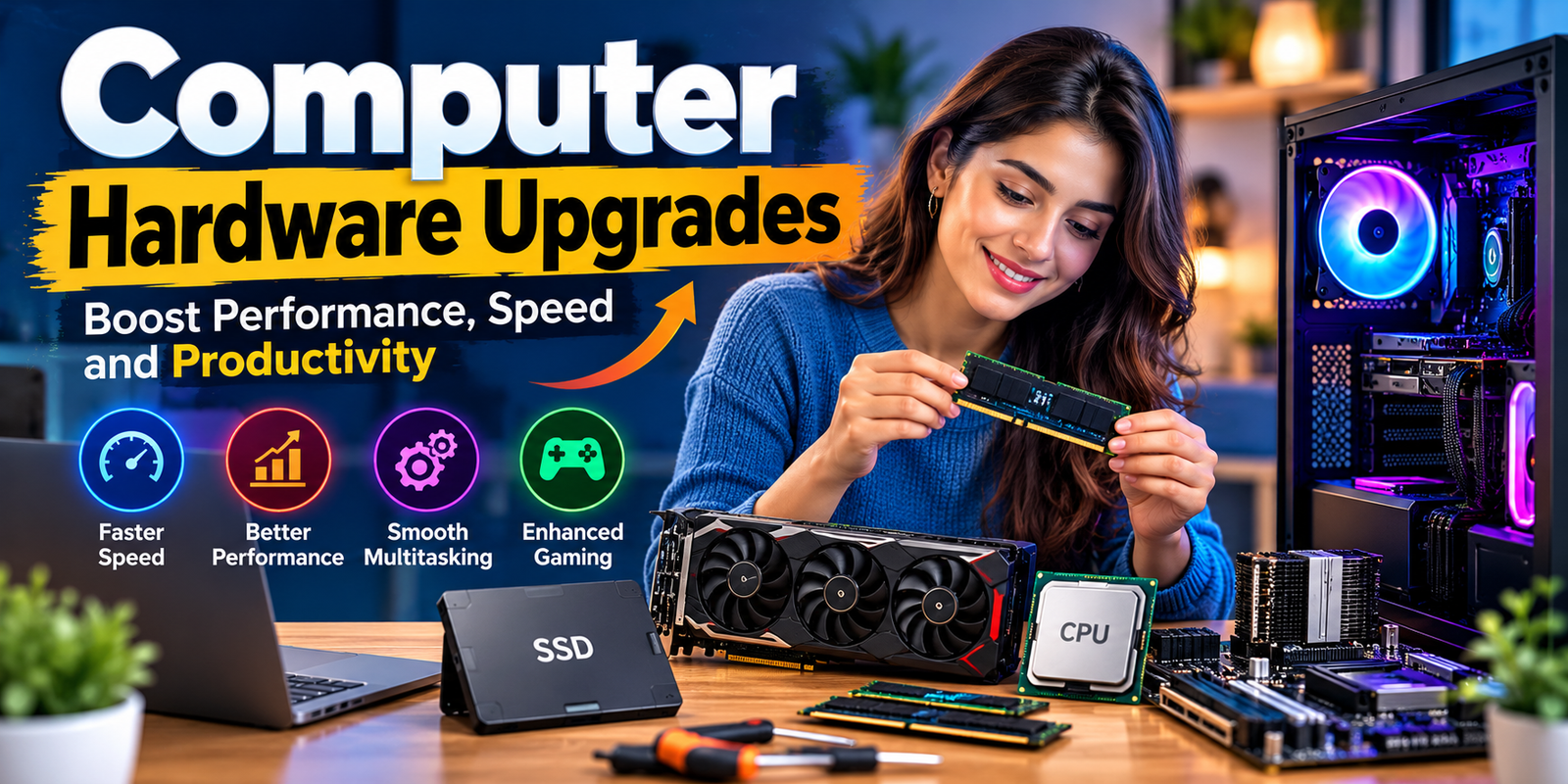
The motherboard connects the CPU, memory, storage, graphics card, and other devices. Replacing it can unlock support for newer processors, additional memory, faster storage, or newer expansion standards. However, motherboard replacement is one of the Computer Hardware Upgrades that requires careful compatibility planning.
A motherboard replacement is usually not the first upgrade to consider. If your current board supports the processor, RAM, and storage you need, replacing individual components may offer better value.
A motherboard upgrade may make sense when:
- Your desired CPU is incompatible with the existing board.
- You need more memory capacity or additional expansion slots.
- You require a supported interface that your current system lacks.
- Your existing motherboard limits a planned system rebuild.
Check CPU support lists, memory compatibility, form factor, storage connections, expansion slots, and firmware requirements before buying a new board.
8. Add Faster Networking
Networking upgrades can improve performance when your work depends on transferring large files between computers, accessing network storage, or connecting to remote computing resources. For these workloads, networking can be an important part of broader Computer Hardware Upgrades.
Depending on your setup, useful options may include a faster Ethernet adapter, a compatible Wi-Fi adapter, a better network switch, or an upgraded router.
For professional workloads, wired Ethernet is often a practical choice when stable, low-latency connections and predictable transfer speeds are important. The final result also depends on the network equipment, cable quality, internet connection, and capabilities of the remote system. Computer Hardware Upgrades
A faster network adapter will not improve local CPU processing or make a slow internet connection faster than the service and network infrastructure allow.
9. Improve Storage Capacity and Data Management
Large video files, scientific datasets, virtual machines, and development projects can consume storage quickly. Adding a secondary SSD or a suitable hard drive can provide extra space and help separate operating system files from large project data. Storage capacity is another factor to consider when choosing Computer Hardware Upgrades for demanding work.
For high-performance workloads, consider keeping active projects on a fast SSD and using larger storage for archives or backups. The best arrangement depends on how frequently files are accessed and how much capacity you need.
Storage upgrades should also include a reliable backup plan. RAID configurations can help with availability or performance in certain situations, but RAID alone is not a backup because accidental deletion, malware, or other failures can still affect the data. Computer Hardware Upgrades
10. Improve Case Airflow
Good case airflow helps move heat away from the CPU, GPU, storage, and other components. This becomes more important when a computer runs demanding workloads for long periods. Improving airflow can support the stability of other Computer Hardware Upgrades, particularly high-power processors and graphics cards.
You may be able to improve airflow by cleaning dust filters, organizing cables, checking fan direction, and adding compatible case fans. The goal is to provide cool air to important components and remove warm air efficiently.
Before buying additional fans, check whether the existing case has suitable mounting points and whether the current temperatures indicate an airflow problem. More fans do not automatically mean better cooling if their placement is poorly planned.
Which Hardware Upgrade Gives the Biggest Performance Improvement?
The most effective upgrade depends on the system’s current bottleneck. Use this table to match common performance problems with potential solutions.
| Performance Problem | Upgrade to Consider | Expected Benefit |
|---|---|---|
| Slow startup and application loading | SSD | Faster boot and load times |
| Slowdowns with many applications open | More RAM | Better multitasking when memory is insufficient |
| Slow CPU-based rendering or compilation | Stronger CPU | Faster processor-heavy work |
| Low performance in GPU-accelerated tasks | More capable GPU | Faster supported graphics and parallel workloads |
| Performance drops under sustained load | Cooling improvements | More consistent performance if thermal limits are the cause |
| Instability after a component upgrade | Suitable PSU or compatibility correction | Improved stability when power delivery is the problem |
| Slow access to remote files | Networking upgrade | Better transfer performance when the network is limiting |
Monitor CPU usage, GPU usage, memory consumption, storage activity, and temperatures during the tasks that feel slow. These measurements can help you identify the component that needs attention instead of spending money on Computer Hardware Upgrades that will not solve the problem.
How to Choose Compatible Computer Hardware Upgrades
Compatibility checks can prevent expensive mistakes. Before purchasing components, follow these steps to make your Computer Hardware Upgrades more effective.
- Identify your existing hardware: Check your CPU, motherboard model, RAM type, storage interfaces, graphics card, and PSU specifications.
- Define your workload: Decide whether your main priority is gaming, video editing, AI development, software compilation, data processing, or general multitasking.
- Find the bottleneck: Monitor resource usage during real tasks to see which component is limiting performance.
- Check compatibility: Review manufacturer specifications for sockets, memory support, physical dimensions, connectors, and power requirements.
- Compare total cost: Include any additional cooler, power supply, motherboard, or storage needed to support the upgrade.
- Plan the installation: Back up important data, follow manufacturer instructions, and use appropriate electrostatic-discharge precautions.
- Test the system: Check temperatures, stability, and application performance after installing the hardware.
For laptops, upgrade options are often more limited than for desktop computers. Some models have soldered memory or storage that cannot be replaced easily. Always check the exact model specifications before purchasing parts.Computer Hardware Upgrades
Budget-Friendly Upgrades Versus High-End Components
You do not always need premium hardware to improve computing performance. A balanced system with enough RAM, a suitable SSD, adequate cooling, and components matched to your workload can be more useful than spending most of your budget on one expensive part. The best Computer Hardware Upgrades are those that provide measurable benefits for the work you actually do.
- For everyday productivity: An SSD and sufficient RAM are often sensible starting points.
- For software development: Prioritize adequate memory, a capable CPU, and fast storage according to the tools you use.
- For video editing: Consider RAM capacity, GPU acceleration, CPU performance, and storage speed.
- For AI and machine learning: Evaluate GPU memory, framework support, RAM, and the size of your intended models or datasets.
- For scientific computing: Check application-specific CPU, memory, GPU, and networking requirements.
Prices and performance vary by market, manufacturer, and component generation. Compare current local prices, warranties, power requirements, and application benchmarks before making a purchase.
Common Mistakes to Avoid
Avoid these mistakes when planning Computer Hardware Upgrades:
- Upgrading without diagnosing the problem: Identify the bottleneck before replacing hardware.
- Ignoring compatibility: Confirm sockets, memory types, drive interfaces, and case dimensions.
- Buying excessive RAM: Choose capacity based on actual workloads and application requirements.
- Choosing a GPU without checking power needs: Verify PSU capacity, connectors, and physical clearance.
- Overlooking cooling: High-power components need suitable airflow and heat management.
- Forgetting backups: Protect important files before changing storage or other hardware.
- Expecting every upgrade to improve every task: Gains depend on whether the upgraded component affects the workload.
Frequently Asked Questions
1. What is the best first hardware upgrade for a slow computer?
If the computer still uses a traditional hard drive, an SSD is often a useful first upgrade. If the system already has an SSD, check memory usage, processor performance, and temperatures to identify the actual bottleneck before choosing Computer Hardware Upgrades.
2. How much RAM is needed for high-performance computing?
The amount depends on the workload. Many general-purpose systems work well with 16 GB, while demanding creative applications and multitasking may benefit from 32 GB or more. Large datasets, complex simulations, and multiple virtual machines can require substantially more memory.
3. Is a GPU more important than a CPU for high-performance computing?
Neither is always more important. GPU-intensive workloads, such as supported machine learning and graphics tasks, can benefit greatly from a capable GPU. CPU-heavy applications may depend more on processor speed, core count, or memory performance. Computer Hardware Upgrades
4. Can I upgrade my laptop for better performance?
Some laptops allow SSD or RAM upgrades, but others have soldered components or limited expansion options. Check the exact model’s specifications and service documentation before buying replacement hardware.
5. Does a faster SSD increase computing power?
An SSD improves storage access and can reduce loading delays, but it does not directly increase CPU or GPU processing power. Its biggest benefits appear when storage speed or file access is limiting the workload.
6. How can I tell which component is slowing down my computer?
Monitor CPU and GPU utilization, memory usage, storage activity, and component temperatures while running your usual applications. High usage or thermal limits can provide clues, but compare several measurements before deciding which component to upgrade.
Conclusion
The best Computer Hardware Upgrades are the ones that solve your system’s actual performance problems. An SSD can improve storage responsiveness, additional RAM can support demanding multitasking, a stronger CPU can speed up processor-heavy tasks, and a capable GPU can benefit supported graphics and parallel computing workloads.
Before spending money, identify your workload, check compatibility, and compare the expected benefits with the total upgrade cost. A balanced system with suitable memory, storage, processing power, cooling, and reliable power delivery can provide better results than upgrading a single component without a clear plan. Computer Hardware Upgrades
By selecting compatible Computer Hardware Upgrades based on real performance needs, you can improve efficiency, support more demanding applications, and extend the useful life of your computer.